
References while you write
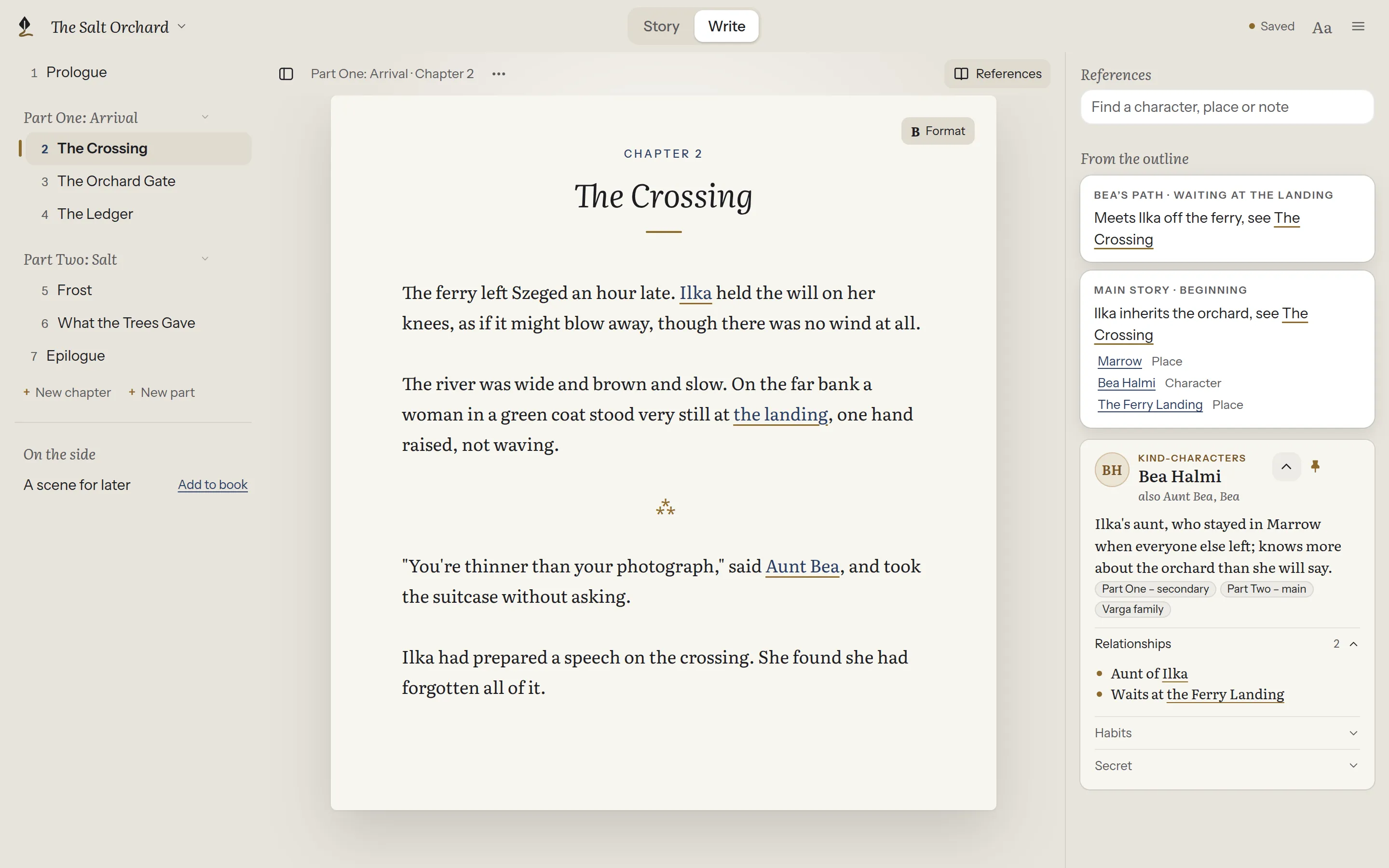
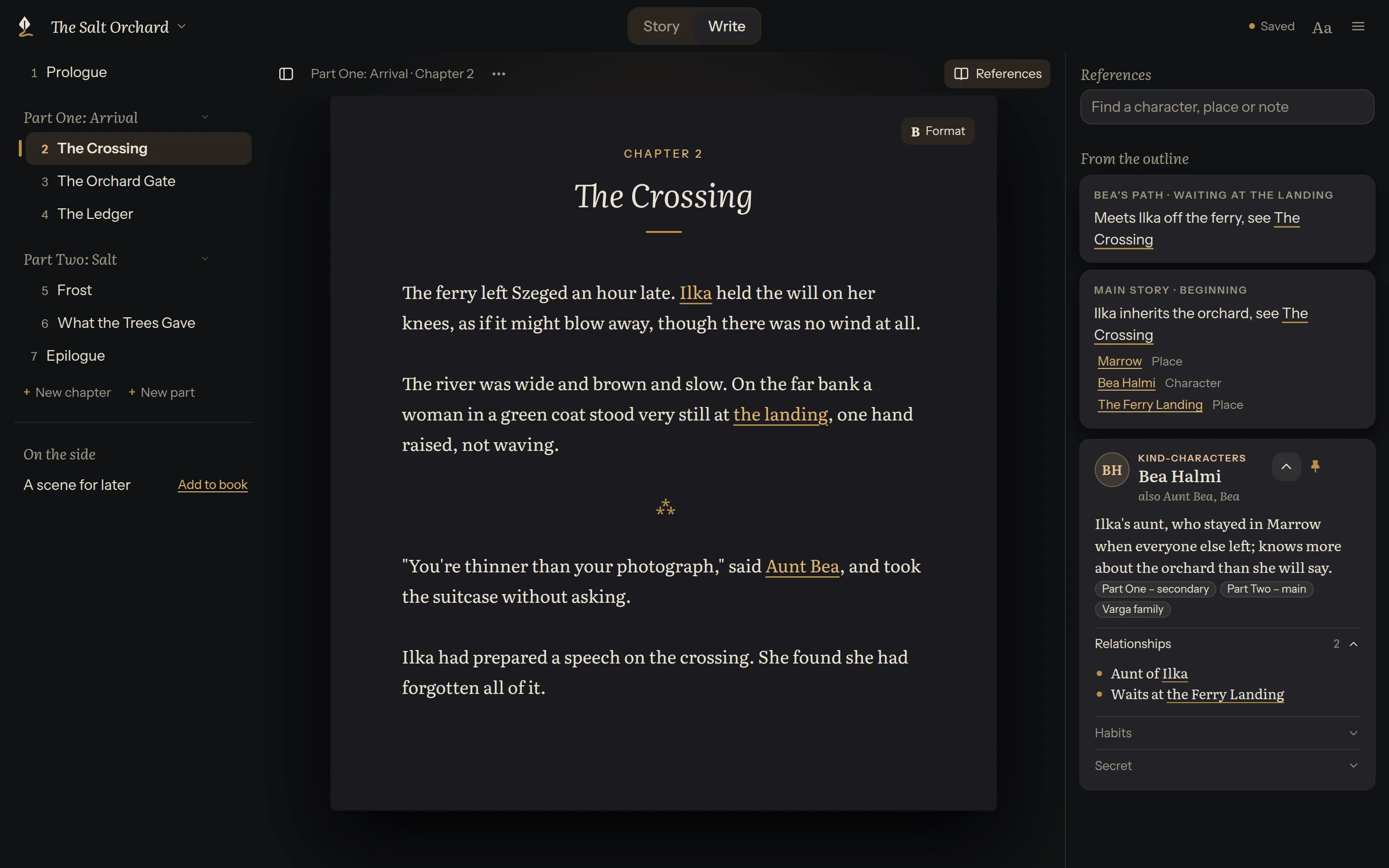
References sit beside the page while you write. Open them with the book icon at the top right of the page, or Ctrl+Shift+R (⌘⇧R). Using them never moves your cursor or touches your undo history.
Find a page
Section titled “Find a page”Click into Find a character, place or note. Before you type, it offers a few pages to start from, characters first. Type a name, or another name the character goes by, and press Enter to open the best match.
Pin what you need
Section titled “Pin what you need”The pin on a page’s card keeps it on the shelf while you move between chapters. Pinned pages stay in the order you choose: drag them, or focus one and press Alt+↑ or Alt+↓. A card’s ⋯ also has Edit page and Close.
Read a page’s details
Section titled “Read a page’s details”Each card shows the page’s initials in a circle coloured by kind (gold for characters, terracotta for places, plum for notes), along with its other names and tags. Its buttons appear when you point at the card or move to it with Tab; a pinned page’s pin always shows.
A card starts slim: the page’s name and description, then one line for each of its headings, with how many items a list holds. Click a heading to read that part (its lists, links and notes), and click it again to fold it away. Anything written before the first heading is under Details.
The arrow beside the pin opens every part at once, or folds the card back to slim. While a card is open, its name and buttons stay at the top as you scroll, so folding it is always at hand.
Make the shelf wider
Section titled “Make the shelf wider”Drag the edge between the shelf and the page to make the shelf wider or narrower, or focus that edge and use the arrow keys. Double-click the edge to put it back. The chapters list on the other side of the page resizes the same way. Both widths are remembered.
From the outline
Section titled “From the outline”From the outline shows the outline cards that link to the chapter you’re writing, with the characters and places they mention. See Linking.