Tags
A novel can have twenty characters, but in Part Two only a few of them really matter. Tags let you say which ones. A tag is a word or a few words of your own, such as “Part Two – main”, “Varga family” or “the Marrow plot”. Any character, place or note can have as many tags as you like, and a tag can be on characters, places and notes alike.
Tags don’t change the story. They’re for you: they put the pages you need first, wherever you look for them.
Tag a page
Section titled “Tag a page”Open a character, place or note under World. Its tags are under its name.
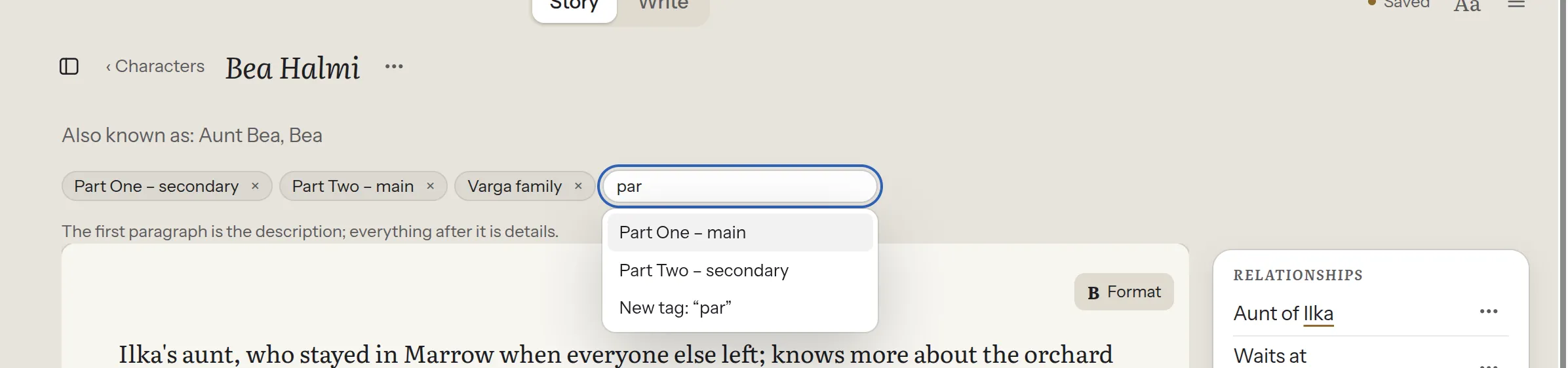
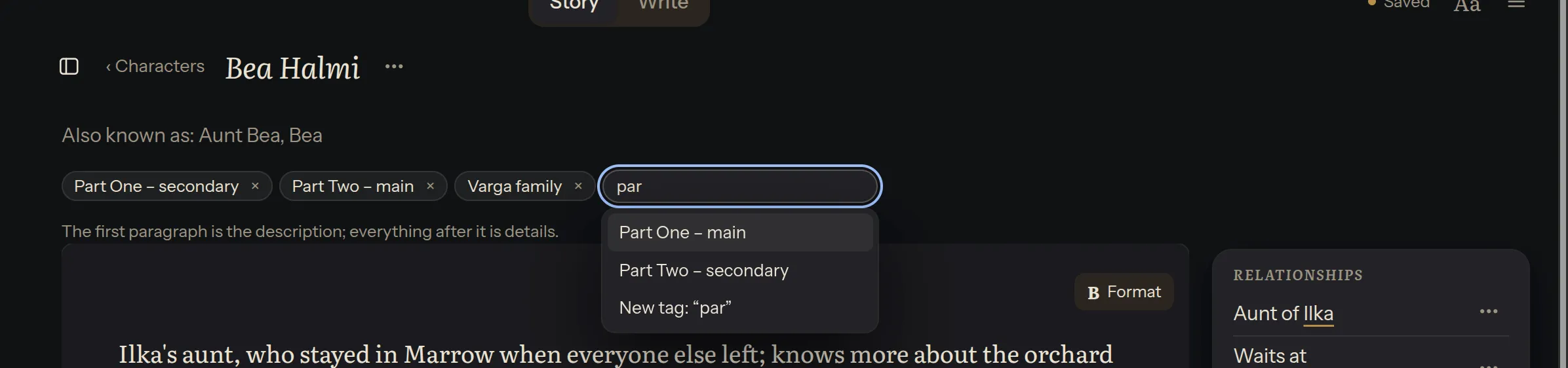
- + Tag adds one. Tags you’ve already used are suggested as you type, so the same tag isn’t spelled two ways. A book started from a template also suggests a few of its own, such as “Villain” and “Ally” in a campaign. Press Enter to add the highlighted one, or keep typing to make a new one.
- The field stays open for the next tag. Esc closes it.
- × takes a tag off this page. The tag stays on other pages.
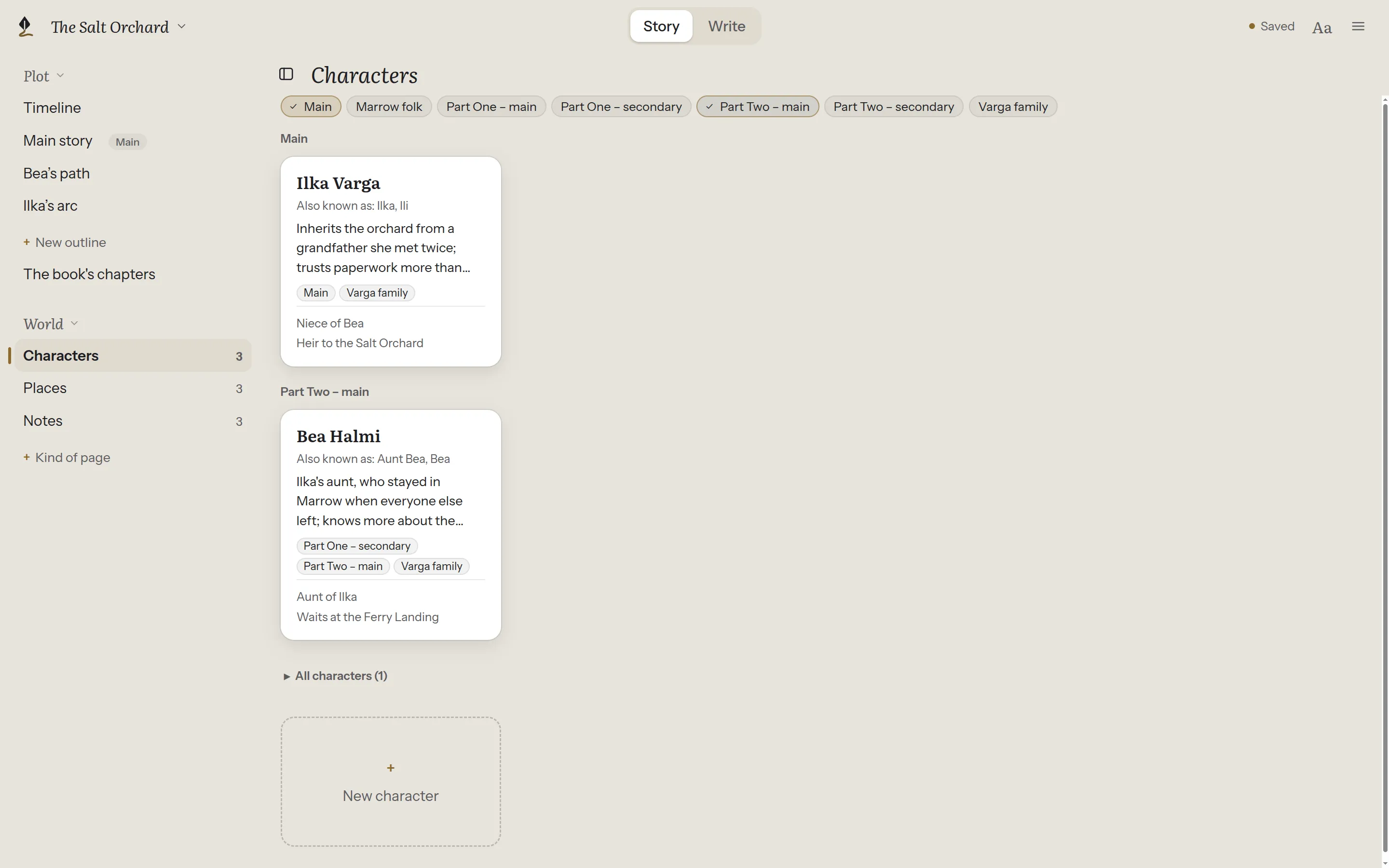
Each card under Characters, Places and Notes shows its page’s tags too: four at most, then how many more.
Group by tags
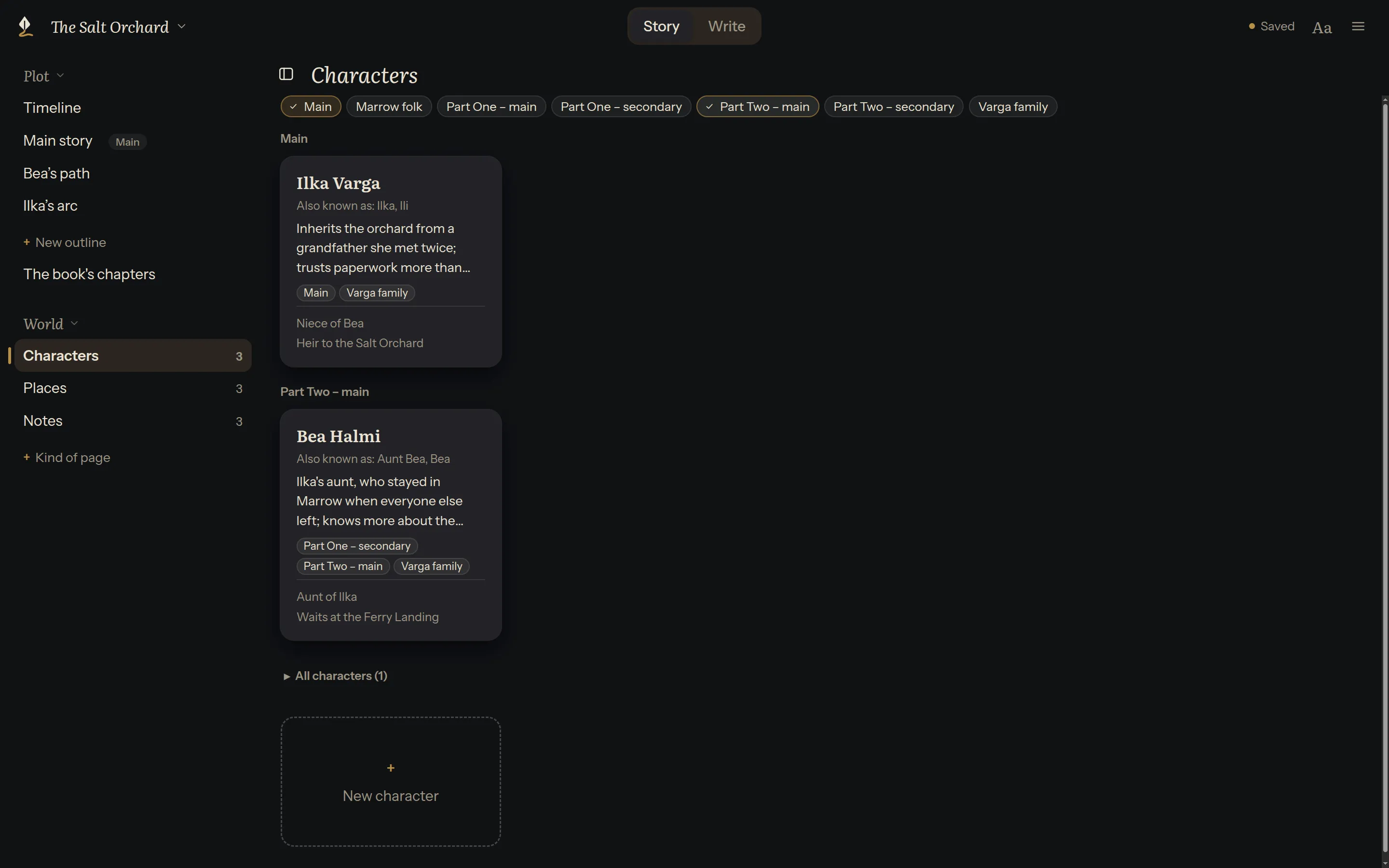
Section titled “Group by tags”Above the cards is a row with every tag in use. Choose one or more:
- The pages with the first tag you chose come first, then those with the second, and so on. A page with two chosen tags is in the first group only.
- The rest fold away below, under All characters (or All places, All notes). Click it to see them.
- A chosen tag shows a ✓. Choose it again to let it go.
- With many tags, the first ten are in the row and + N more lists the rest, with a search.
While you write
Section titled “While you write”The references shelf beside the page has the same row of tags while you search it. Choose the tags that matter for this part, and those pages come first, before you’ve typed anything. The rest are under All pages.
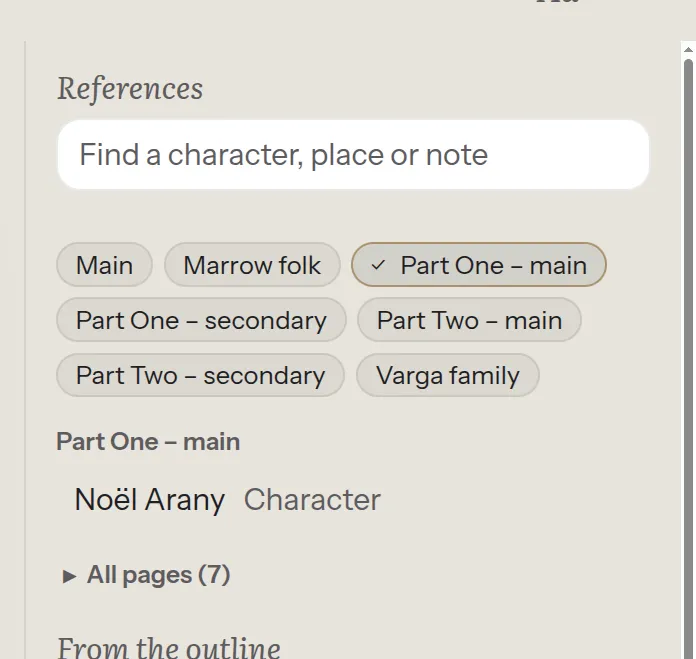
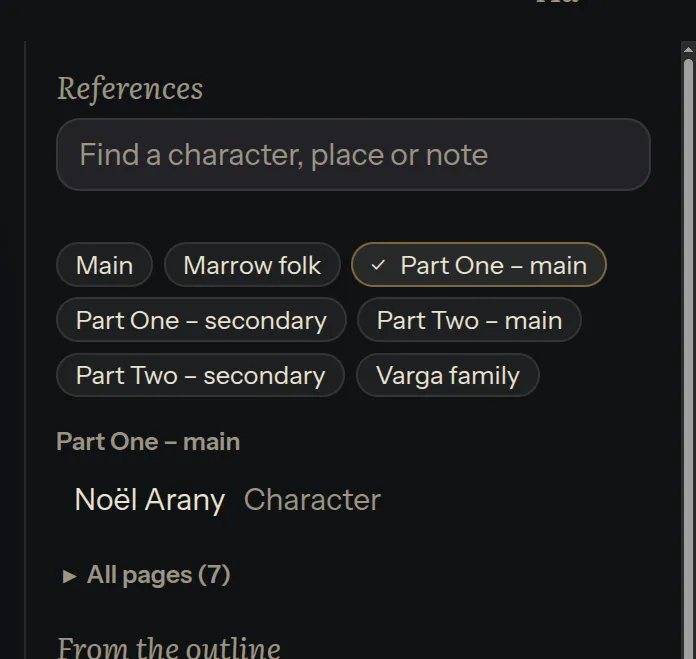
The shelf remembers your choice for each part. Choose “Part One – main” while writing in Part One and “Part Two – main” in Part Two: each time you move between parts, its tags are chosen again, even after Plot Device restarts. Chapters outside any part share one choice. This is kept on your computer, not in the book’s files.
Type in the search, and the names are found inside the groups. If what you type matches a tag, that tag is offered to choose.
Link to… has the same row too, for picking a page to link to.
Rename or remove a tag everywhere
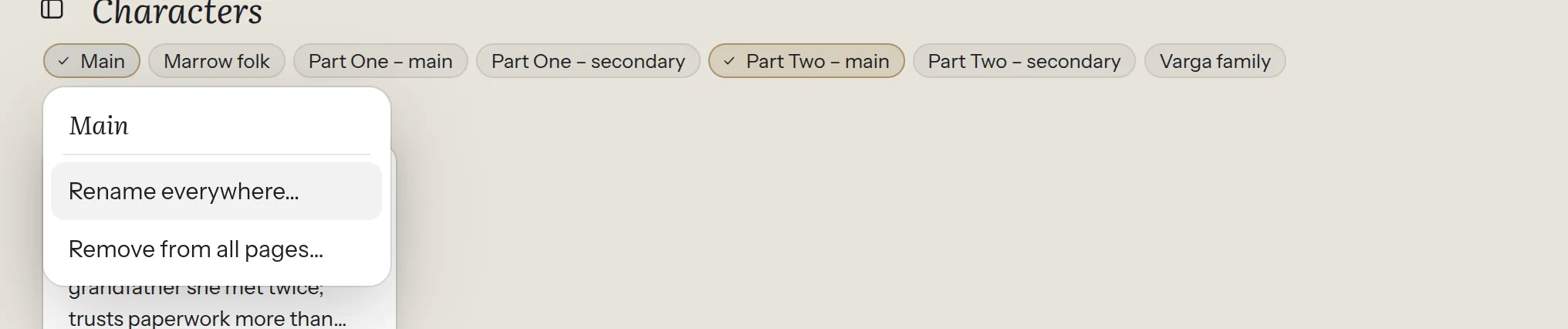
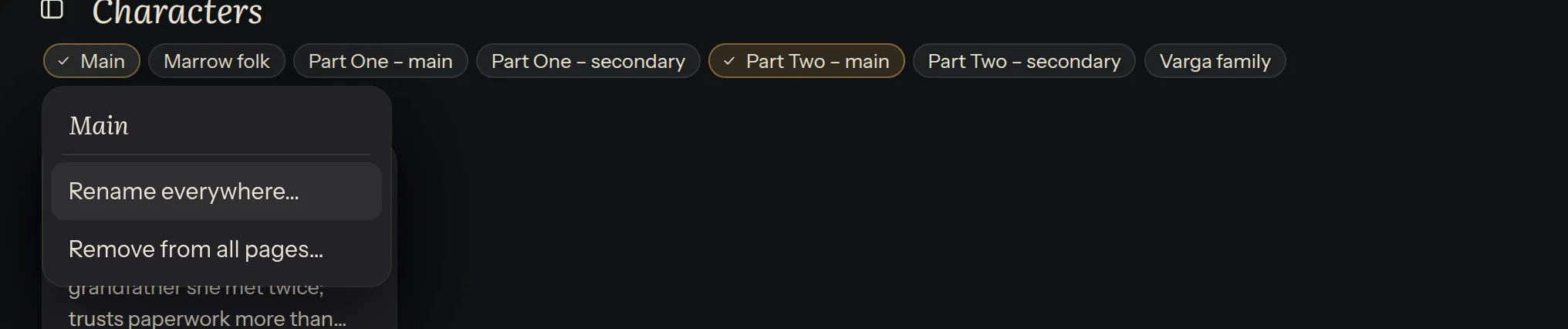
Section titled “Rename or remove a tag everywhere”Right-click a tag in the row above the cards or on the shelf, or press Shift+F10 on it:
- Rename everywhere… gives it a new name on every page. Renaming a tag to one that already exists merges the two.
- Remove from all pages… takes it off every page. The pages themselves stay.
Both say how many pages they’ll change before they do it, and afterwards how many changed.
Tidy tags
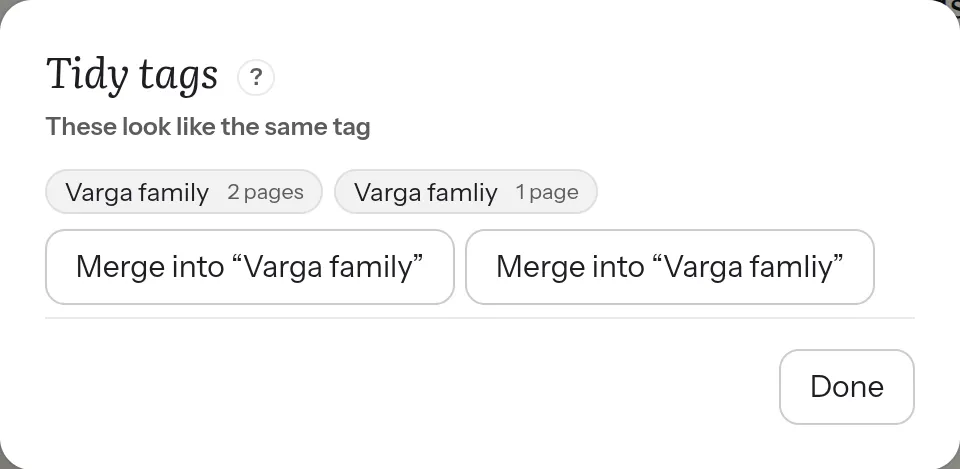
Section titled “Tidy tags”Tags typed in a hurry, or in another app, can go astray: “Varga famliy” next to “Varga family”. When a project opens, Plot Device looks for:
- tags that seem to be the same one, spelled a little differently;
- pages whose tags can’t be read, because the details at the top of the file are broken.
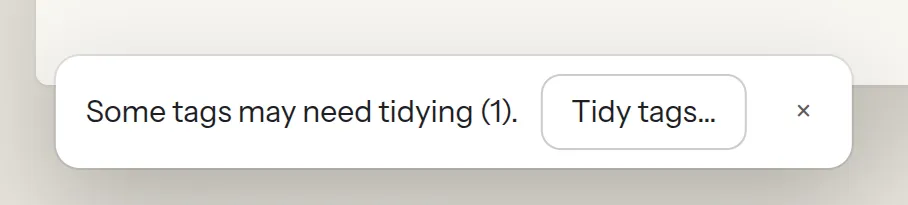
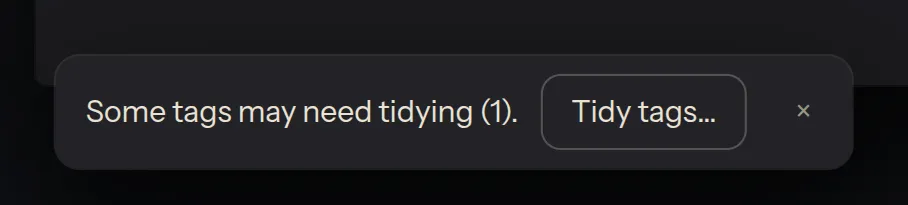
If it finds something it hasn’t told you about before, it says so once:
If there’s nothing to tidy, you won’t see anything at all.
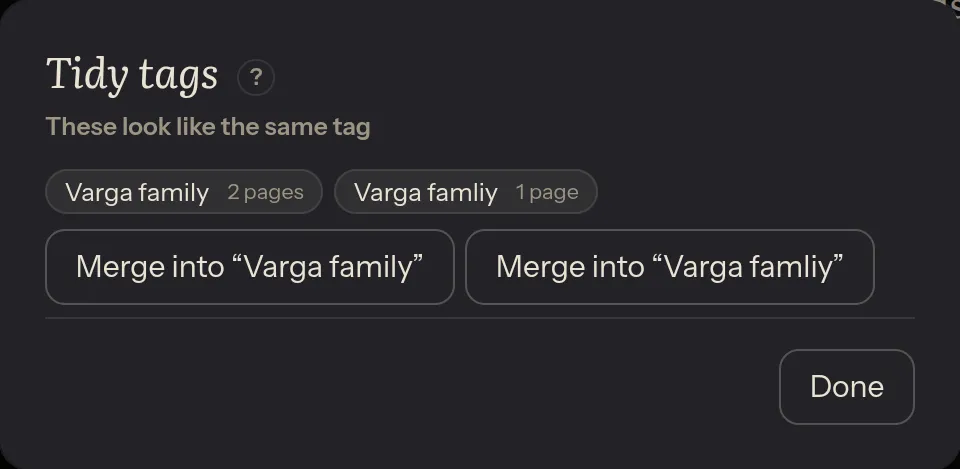
Tidy tags… lists what it found. Merge a pair into whichever spelling you prefer, or open a page to fix it yourself. Nothing changes until you choose, and Plot Device never repairs a file by itself.
While something is left to tidy, Tidy tags… stays at the end of the row of tags. When it’s all tidy, it goes.
“Part 2” and “Part Two” aren’t recognised as the same tag. If you have both, rename one to the other.
In other apps
Section titled “In other apps”Tags are saved with the page, as plain words, so they stay with it in other apps too. For how they’re written, see Character, place and note pages in the technical docs.