Exporting the book
When you’re ready to send your book to an editor, a publisher or a reader, save it as a file they can open. Choose the book’s title at the top, then Export….
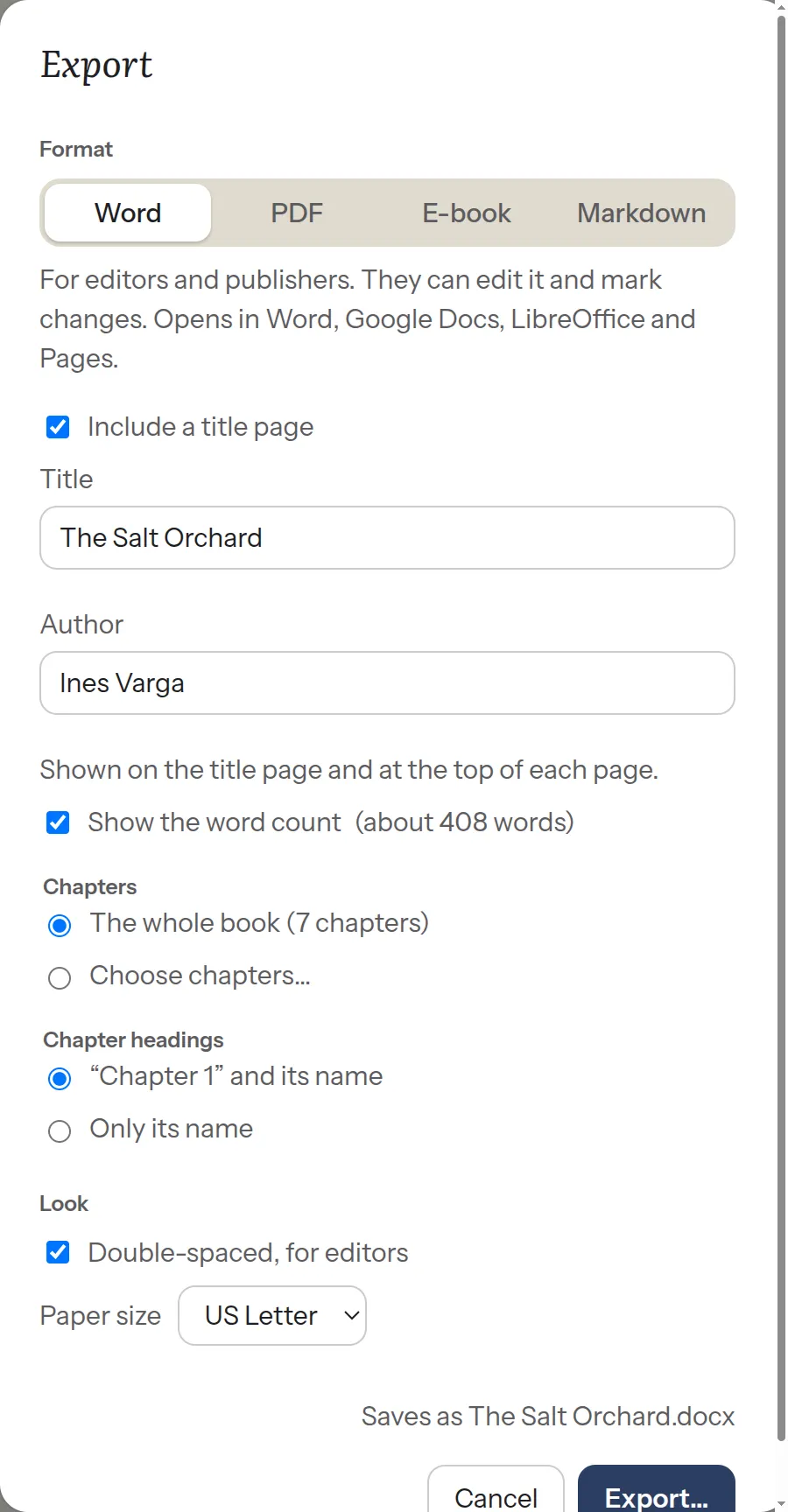
Make your choices, then press Export… and choose where to save the file. Plot Device suggests a place beside the book’s folder, never inside it. Your book itself doesn’t change.
Which kind of file
Section titled “Which kind of file”- Word: for editors and publishers. They can edit it and mark their changes. It opens in Word, Google Docs, LibreOffice and Pages.
- PDF: for anyone to read on any device. It looks the same everywhere, and can’t be edited.
- E-book: for e-book readers and e-book stores (an EPUB file).
- Markdown: one plain text file of the whole book, for other writing tools.
The window only shows the choices that apply to the kind of file you picked.
The title page
Section titled “The title page”Word files and PDFs start with a title page: your name and the word count at the top, then the title and “by” your name. Turn off Include a title page if you don’t want one, or Show the word count to leave out the count. The count is rounded, as editors expect: “about 84,000 words”.
If your book doesn’t have a title yet, the window says so. A title or author name you type here is saved with the book, so it’s the same everywhere.
Some chapters, or the whole book
Section titled “Some chapters, or the whole book”Agents and publishers often ask for a sample. Choose Choose chapters…, then tick the chapters to send. First three ticks the first three in one go. Chapters keep their numbers: chapter 7 sent alone is still chapter 7.
Chapter headings
Section titled “Chapter headings”Each chapter can be headed by its number and its name (“Chapter 3” above “The Crossing”), or by its name only. If your book doesn’t number its chapters, it’s always the name.
How the pages look
Section titled “How the pages look”Word files and PDFs use the standard look for manuscripts:
- 12pt text, double-spaced (or 1.5 lines if you turn off Double-spaced, for editors);
- wide margins, and each chapter starting on a new page;
- your surname, the title and the page number at the top of each page.
Paper size starts as the size used where you live: A4 in most of the world, Letter in the US and Canada.
Hebrew books are right to left throughout. Hebrew text in a Word file uses the David Libre font, packed into the file so it looks right on an editor’s computer.
E-books
Section titled “E-books”An e-book has its own table of contents, built from your parts and chapters. Hebrew e-books turn their pages right to left. You can add a cover picture with Choose a picture…. If the picture is later moved, the window tells you, and you can choose it again or export without it.
What’s in the file
Section titled “What’s in the file”Your chapters, in reading order, with their parts. Italics, bold, quotes, lists, headings inside chapters and scene breaks (* * *) are kept. Chapters under On the side, and everything under Story, aren’t included. If a chapter can’t be read, the window names it before you export, and the book is exported without it.
Plot Device makes these files on your computer. It doesn’t send your book anywhere.