Outlines: board, list and text
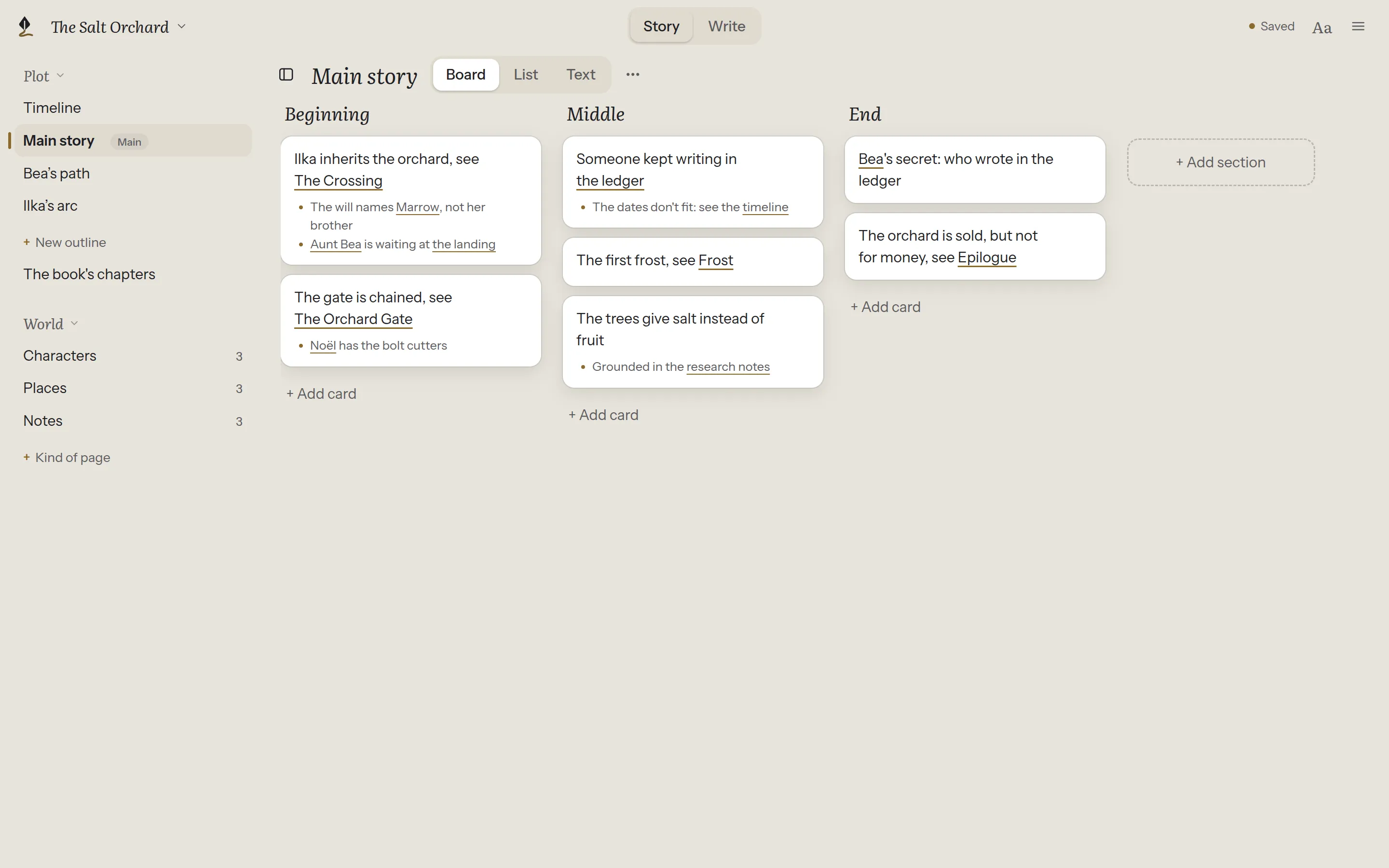
An outline is a plan you can rearrange: the main plot, one character’s arc, a list of loose ideas. A book can have as many as you like, and none at all is fine. Outlines are under Plot, the first half of Story; characters, places and notes are under World (see Characters, places and notes).
Start an outline
Section titled “Start an outline”In Story, choose + New outline and give it a title. Click the title at any time to rename it.
To start from a shape instead of an empty page, choose one under Start from: Three acts, Story beats, Character arc, Campaign arc or Session plan. The outline begins with its sections and a few example cards, in the book’s language, ready to rewrite as your own.
The first time you open an outline, a short guide above it explains sections and cards. Got it puts it away for good.
Three ways to see it
Section titled “Three ways to see it”- Board: each section is a column of cards.
- List: everything as one indented list, with details folded in and out.
- Text: the outline as text, to type freely. See Type it as text below.
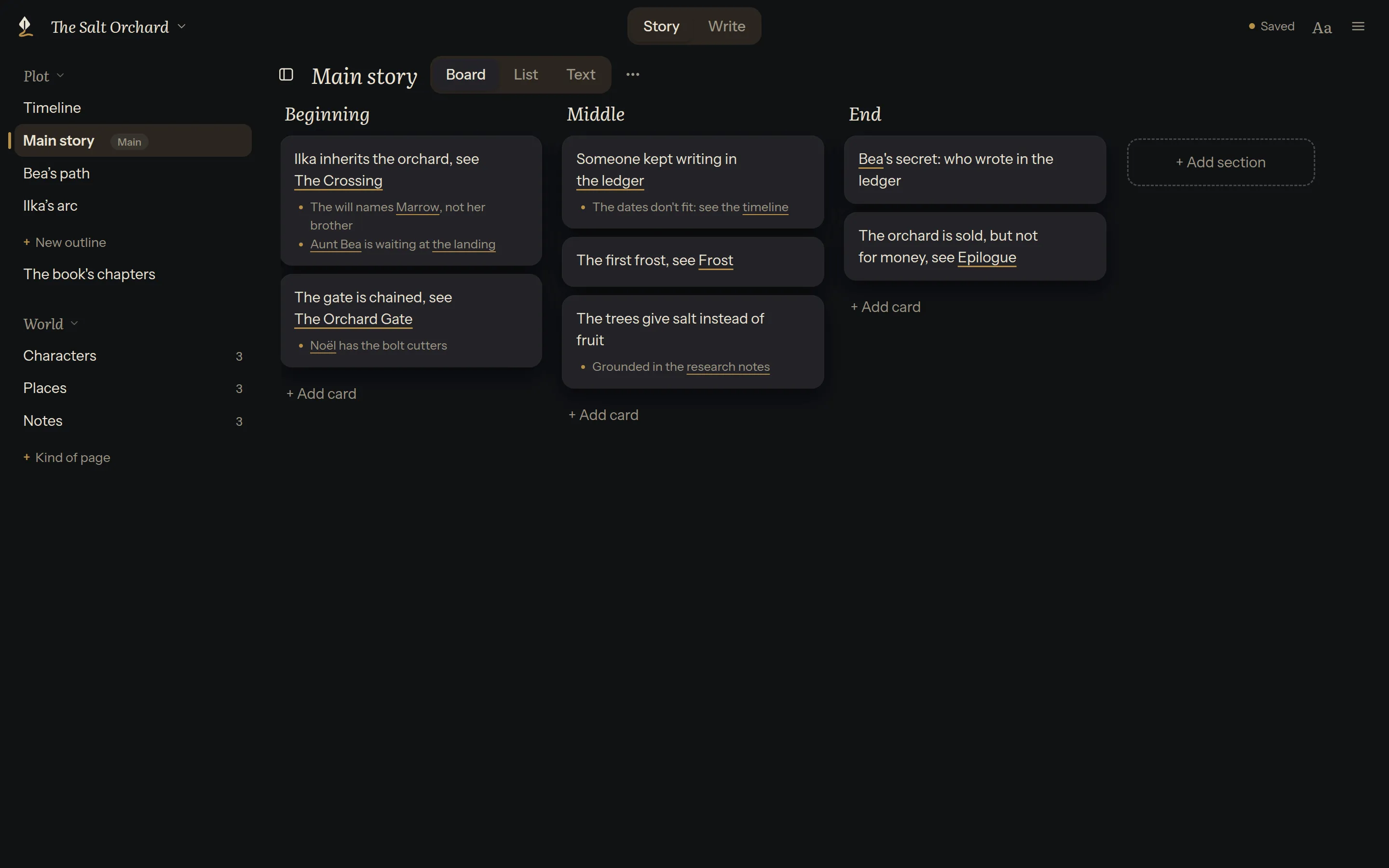
They are three views of the same outline. A change in one is a change in both. The switch is beside the outline’s title, because it belongs to the outline.
Add in the list
Section titled “Add in the list”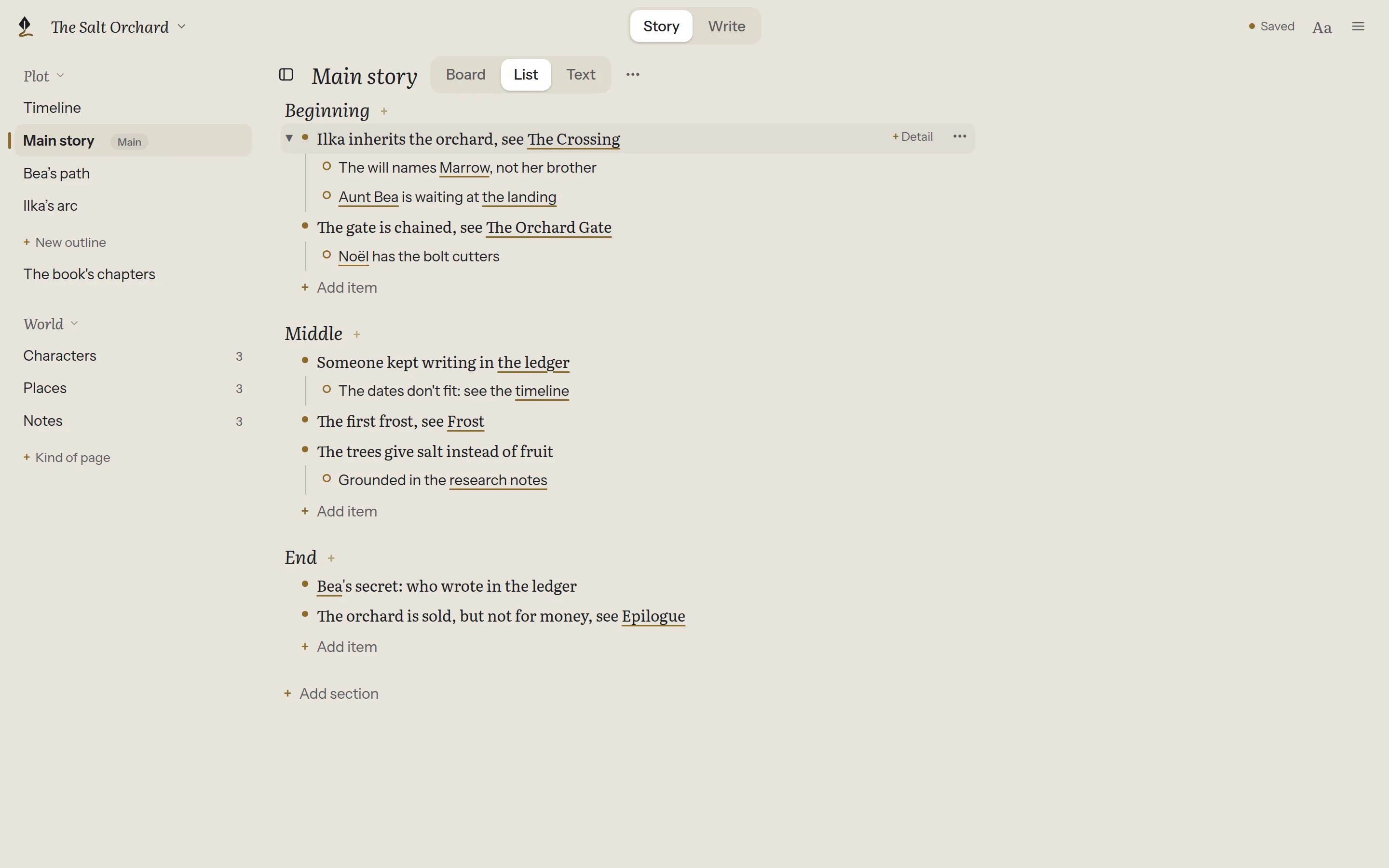
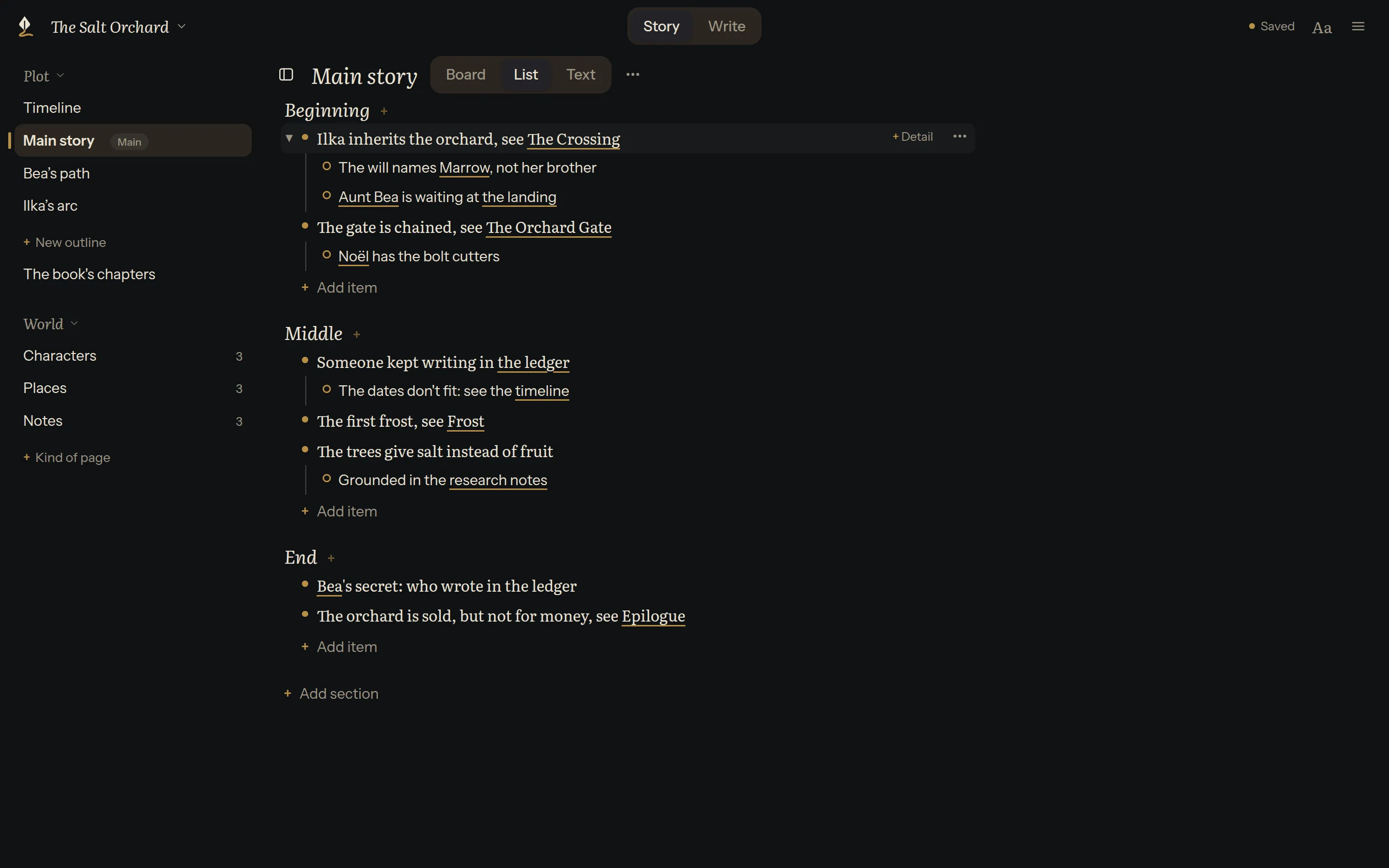
- Every row has a bullet, and where the bullet is says what it is: items ●, and their details ○, one step in, with a thin line down from their item. A folded item’s bullet has a halo; its arrow opens it.
- + Add item, under a section, starts a new item at its end. The quiet + beside the section’s name does the same. + Add section is at the bottom.
- Hover an item (or reach it with the keyboard) for + Detail, which adds a detail to it.
- A new line shows its bullet where it will land, and says what it is: “New item”, or “New detail of …”. The line under it says what Tab would make it.
- While typing a new line: Enter keeps it and starts the next one, Tab makes it a detail of the line above, Shift+Tab brings it back out, and Esc stops.
- To link a character, place, note or chapter while typing, type @ and the start of its name, then choose it. See Linking.
Type it as text
Section titled “Type it as text”For a first draft of the plan, or a quick change, Text lets you type without clicking each item. Ctrl+Shift+E (⌘⇧E on a Mac) switches to it and back.
- Sections show as headings, cards as bullets, details one step in under them, and links as names. No formatting marks show.
- Enter on a card starts the next one, and Enter at the end of a section starts its first card. Tab makes a line a detail of the one above, with its own details; Shift+Tab brings it back out.
- Ctrl+Alt+2 (⌘⌥2) makes a line a section, as a heading in a chapter.
- To see and fix the outline’s marks by hand, choose Edit as plain text in the outline’s ⋯.
- Type @ and the start of a name to link a character, place, note or chapter, as on a card.
- It opens on the card you were on, and going back to the board or list takes you to the card you were typing.
- Anything else you write, such as a paragraph between cards or a table, is kept. The board shows it “kept as written”; under the text, Plot Device says how many such passages there are, and Show finds each one.
It saves as you type, like a chapter. Undo in the text works by the keystroke; back on the board, there is nothing from the text to undo there.
The main outline
Section titled “The main outline”One outline is the book’s main outline, marked Main and listed first. Its sections name the columns of the timeline. A new book’s first outline is its main outline; Make this the main outline, in another outline’s ⋯, changes that, and nothing in your outlines changes with it.
Set aside or delete an outline
Section titled “Set aside or delete an outline”An outline you don’t need right now can be set aside: Set aside in its ⋯ moves it to a quiet Set aside list at the end of Plot, and off the timeline. Nothing is deleted. It opens as before, and Bring back in its ⋯ returns it. If it was the main outline, the next outline takes over, and Plot Device tells you which.
Delete outline…, in the same menu, deletes the outline after saying exactly what that means:
- Only this outline goes, with its own sections and cards. Chapters, pages and other outlines are never deleted with it, even the ones its cards link to.
- It goes to your computer’s Trash, and Plot Device keeps a backup first.
- If other outlines are lined up with it on the timeline, those sections will show “can’t line up”.
- The question offers Set aside instead as the gentler choice.
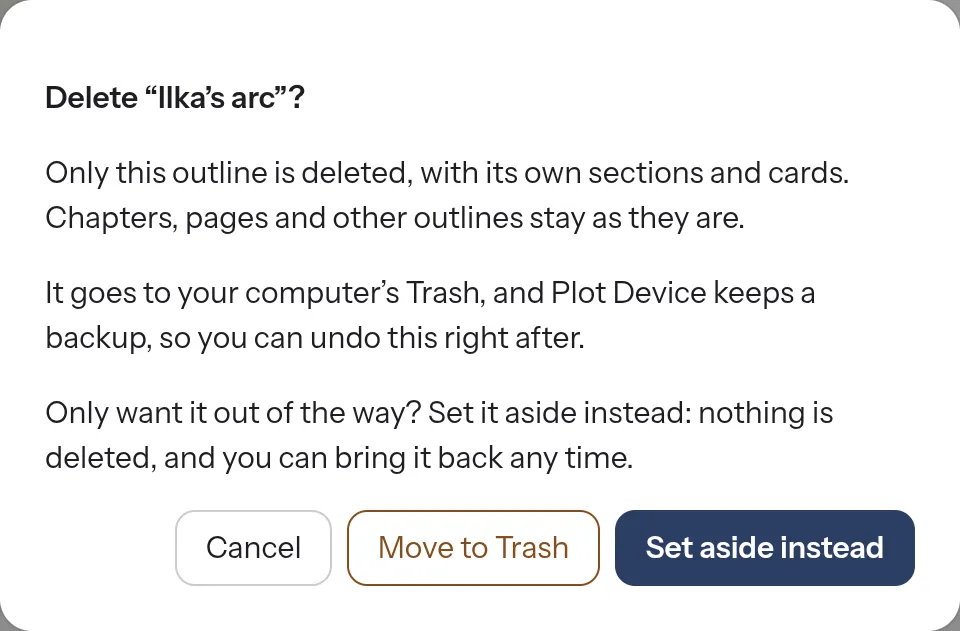
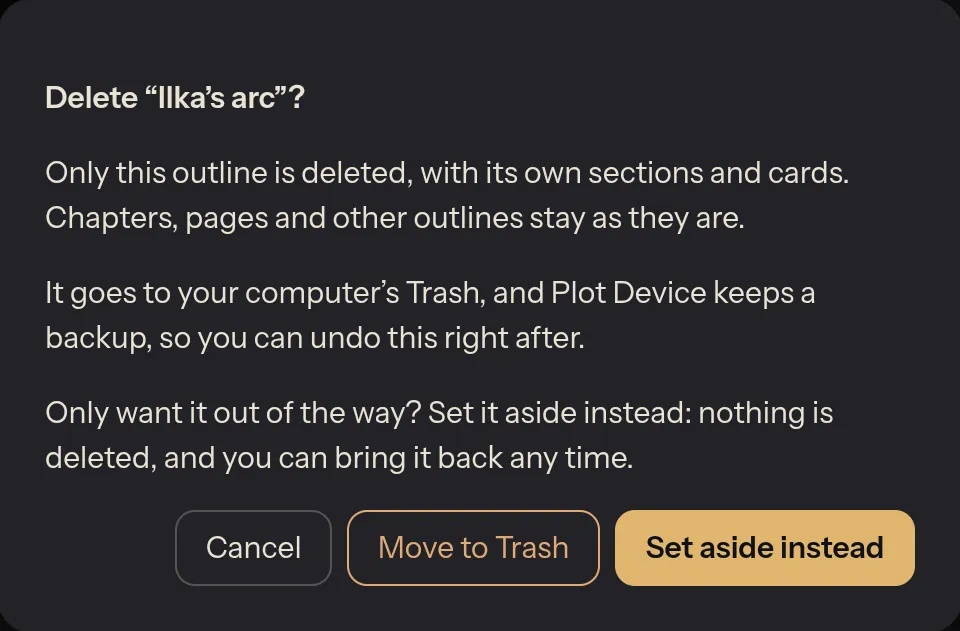
Right after deleting, the message at the bottom of the window has Undo, which puts the outline back exactly as it was. On a computer without a Trash, Plot Device asks a second time before deleting.
Undo, rename and versions
Section titled “Undo, rename and versions”⋯ beside the views has Undo (also Ctrl+Z), Rename outline…, and Earlier versions of this outline….
What an outline is, on disk
Section titled “What an outline is, on disk”An ordinary text file in the book’s folder, written the way you might write a plan by hand, so other apps can open it too. For how it’s written, see Outline files in the technical docs.
An outline is a plan, not the book. Moving a card never moves a chapter.