

Cards and their details
- + Add card, under a section, adds a card at its end. In the list, Enter then starts the next one and Tab makes it a detail (see Outlines).
- + Add section, after the last column, adds a section.
- A card’s ⋯ → Add detail adds a detail inside it: a note, a beat, a reminder. Details can have details of their own.
Double-click a card, or focus it and press Enter or F2, to edit its text. Links show as names while you edit; type @ to add one (see Linking). Formatting such as **bold** works inside cards.
A card’s menu
Section titled “A card’s menu”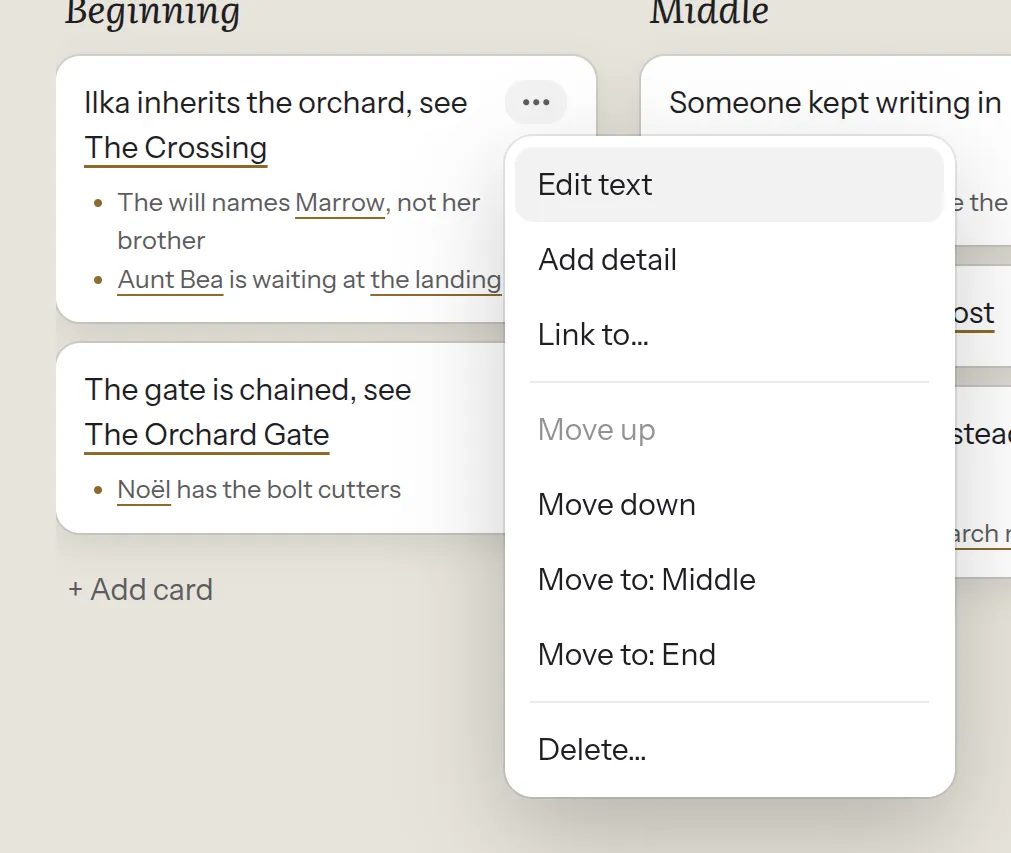
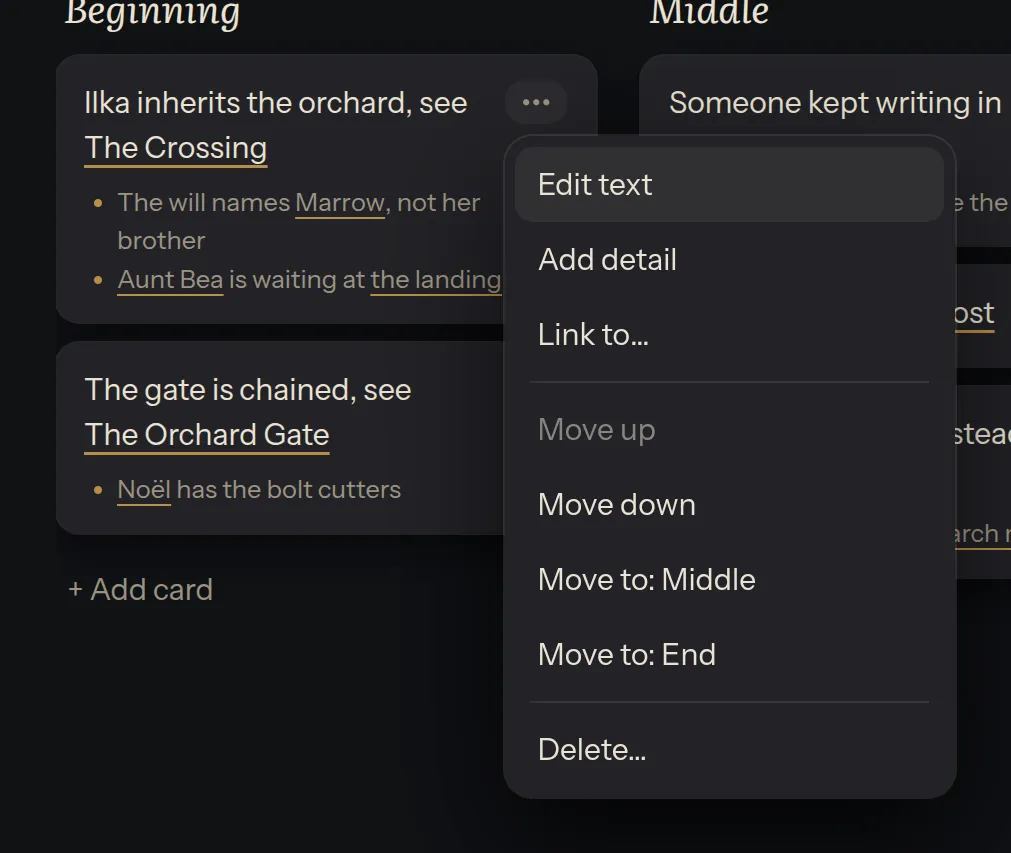
- Edit text, Add detail and Link to….
- Move up, Move down, and moving to another section.
- Delete… asks first, because everything inside the card goes with it. Undo brings it back.
A section’s ⋯ renames, moves and deletes the section, and adds a card to it.
- Drag a card. A gold line shows where it will land: over a card’s top half it goes before it, over the bottom half after it.
- With the keyboard: focus a card and press Alt+↑ or Alt+↓ to move it in its section, Alt+← or Alt+→ to move it to the next section (mirrored in a right-to-left interface).