
Linking cards to chapters, characters and places
A card can point to the chapter it’s about and the characters and places in it. Links are always yours to make: Plot Device never guesses them from names.
Link while you type
Section titled “Link while you type”While you write a card or an item, type @ and the start of a name: “Must meet @be”. Plot Device offers the characters, places, notes and chapters that match; choose one with the arrow keys and Enter, or click it. ([[ works too, as in Obsidian.)
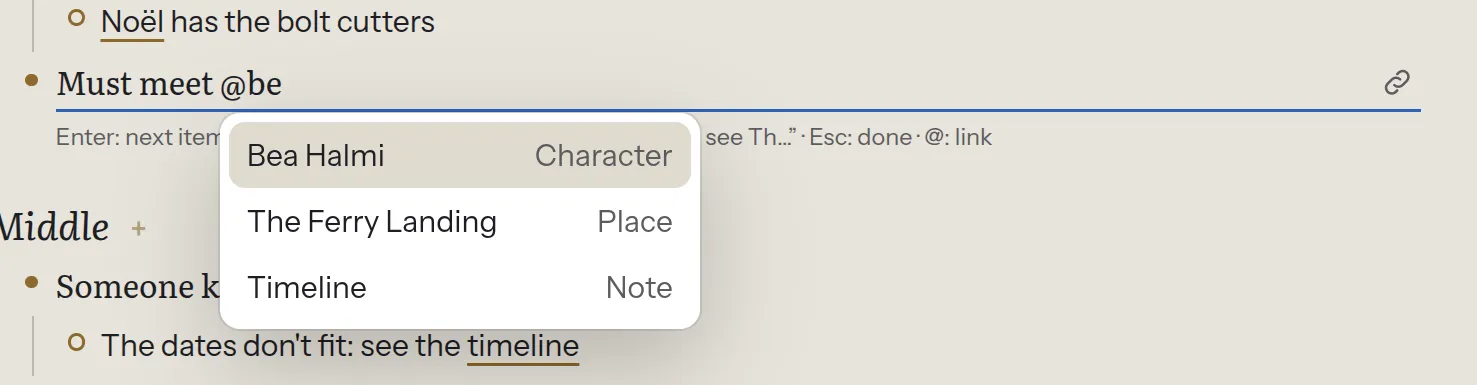
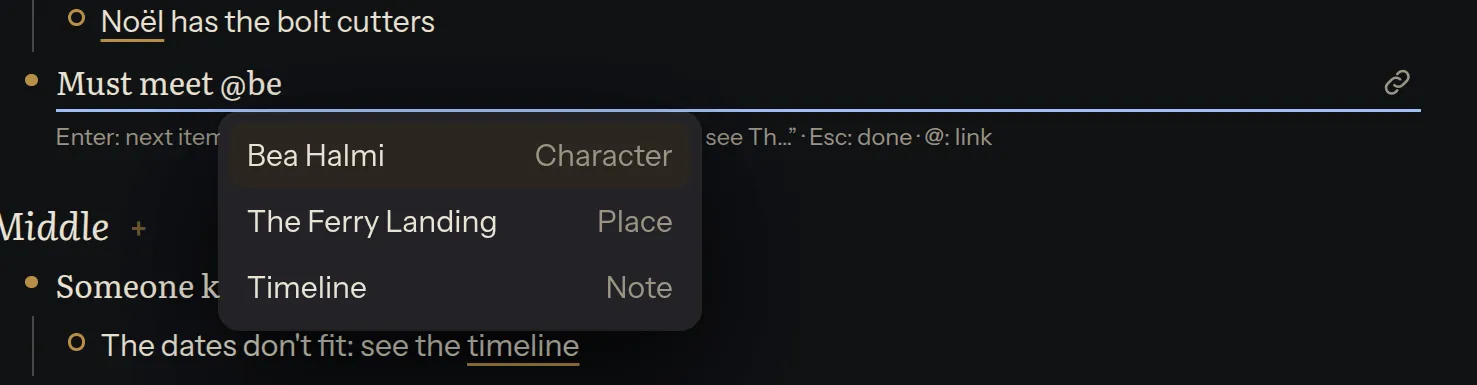
The link shows as the name. Backspace removes it whole. The link button at the end of the field opens the full list, for anyone who’d rather not type @.
Link a card from its menu
Section titled “Link a card from its menu”Choose the card’s ⋯ → Link to…, then pick a chapter, character, place or note. Type to narrow the list.
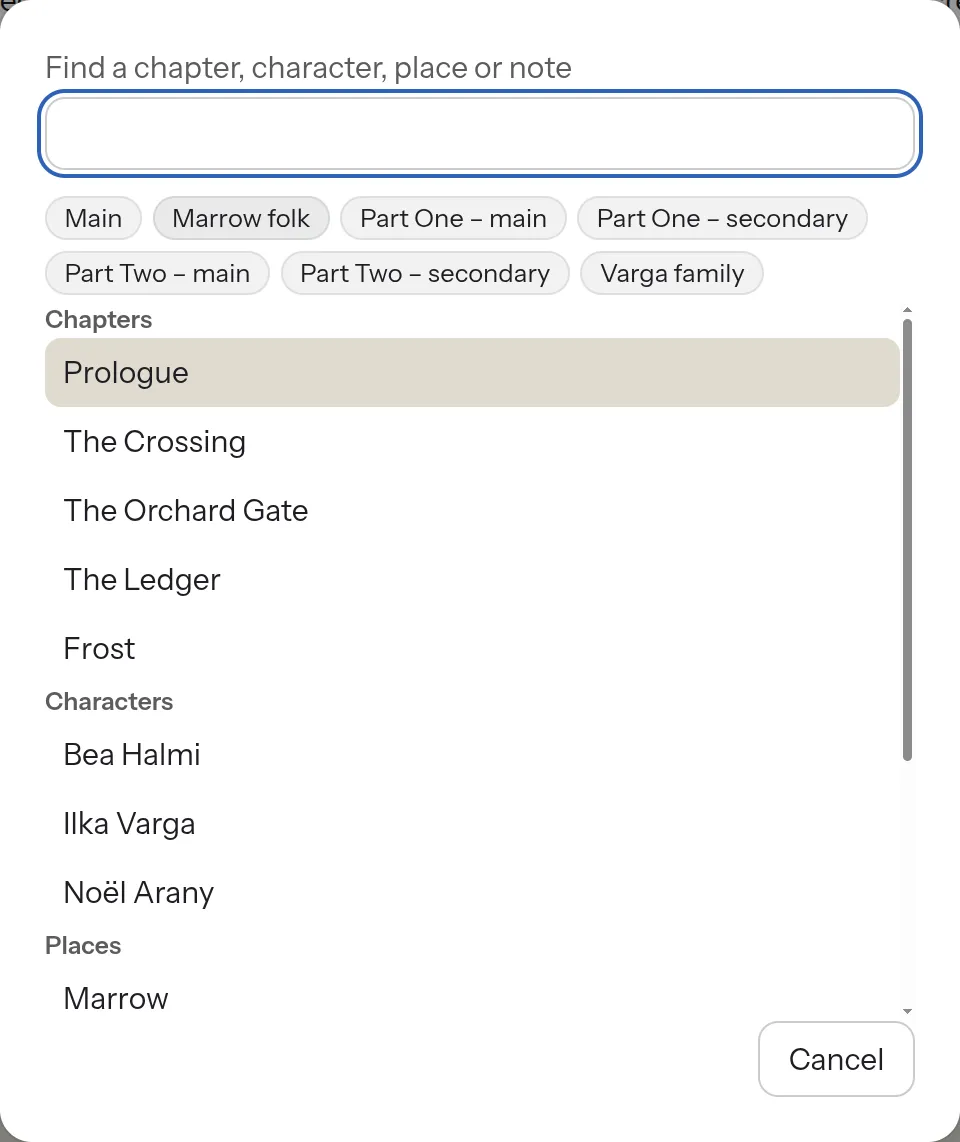
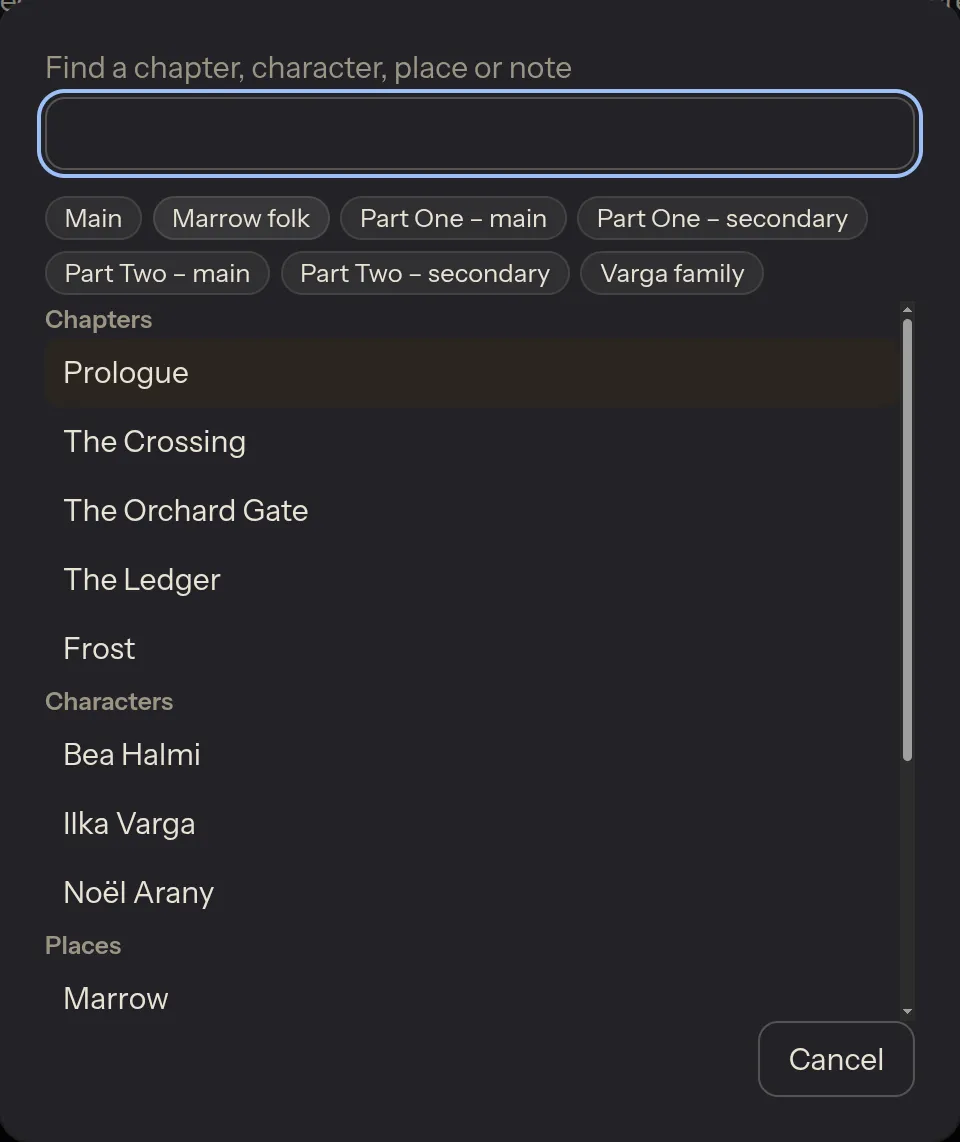
The link is added at the end of the card’s text, as an ordinary link, so it works in other apps too.
Follow a link
Section titled “Follow a link”Click a link in a card: a chapter opens in Write, and a character, place or note opens as its page.
What links to a page
Section titled “What links to a page”A character’s, place’s or note’s page lists every card, page and chapter that links to it, and can show its cards on the board. See Characters, places and notes.
Links while you write
Section titled “Links while you write”When you write a chapter, From the outline, on the references shelf, shows every card that links to it, with the characters and places those cards mention, one click away. See References while you write.