The timeline
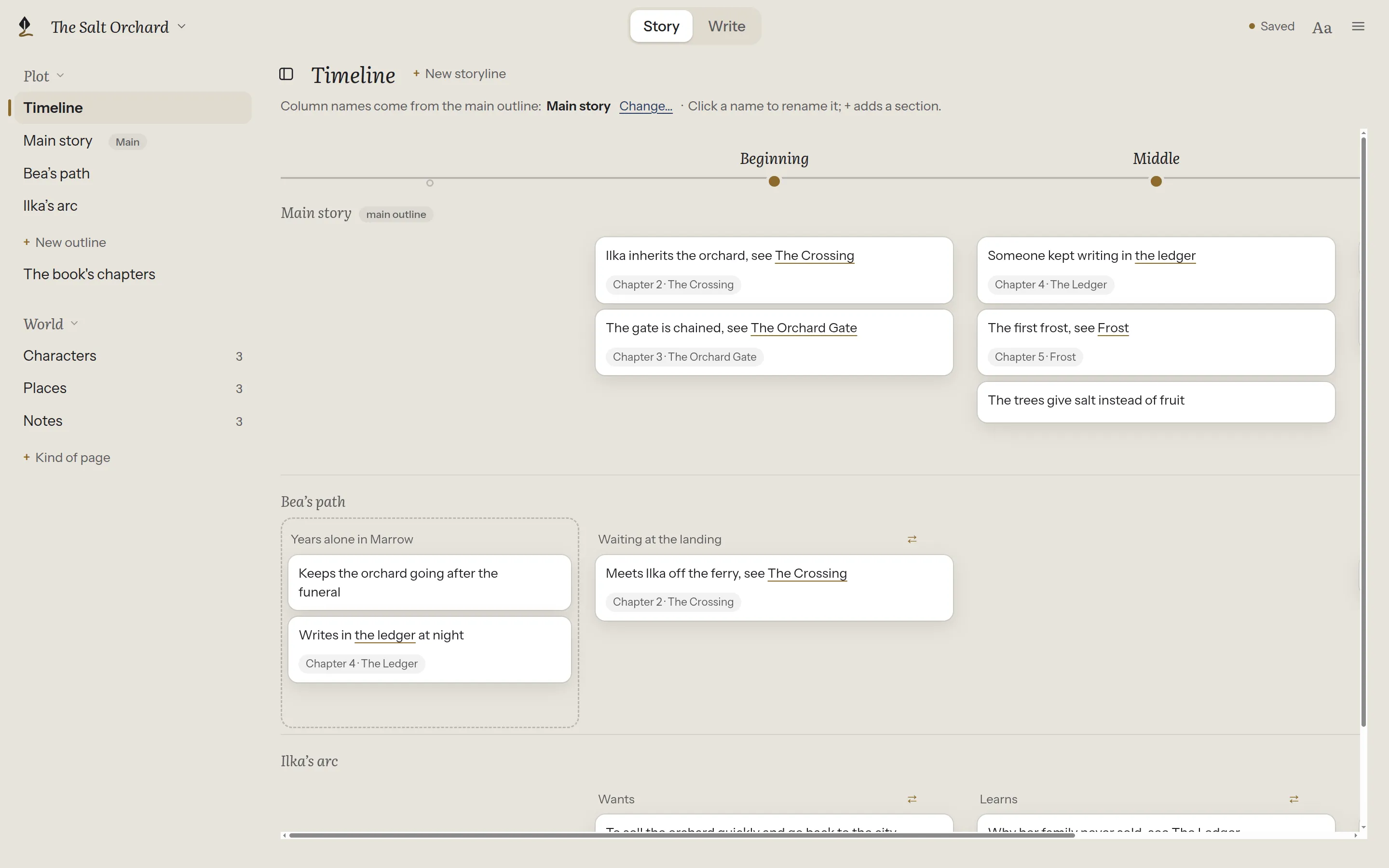
The board shows one outline’s plan. The timeline shows all of them side by side, one row each, so you can see where one storyline is while another happens: where Bea is while Ilka crosses the river, or what happened in Marrow years before.
Open it with Timeline, at the top of Plot. It appears once the book has an outline.
Where the column names come from
Section titled “Where the column names come from”The columns are the sections of your main outline, the one marked Main in the sidebar and shown first on the timeline. The line above the timeline always says which outline that is.
- To rename a column, click its name. That renames the section in the main outline.
- To add a column, point between two columns and choose +. That adds a section to the main outline.
- To use another outline’s sections as the columns, choose Change… above the timeline, or Make this the main outline in that outline’s ⋯. Nothing in your outlines changes: not the text, not the line-ups. You can switch back at any time.
A new book’s first outline is its main outline. The columns are not chapters and not dates: they are the moments of your main plan, in its order. If you want years, make an outline whose sections are years, and make it the main one.
Line up what happens at the same time
Section titled “Line up what happens at the same time”Every other outline is a storyline, in a row of its own. + New storyline, above the timeline, makes a new outline and shows it as a new row.
A section that happens at the same time as a moment of another storyline can be lined up with it:
- Drag the section’s name onto that moment: a column’s name, or a section in another row. Only the moments that keep every storyline in order light up.
- Or open the section’s ⋯ and choose the moment there.
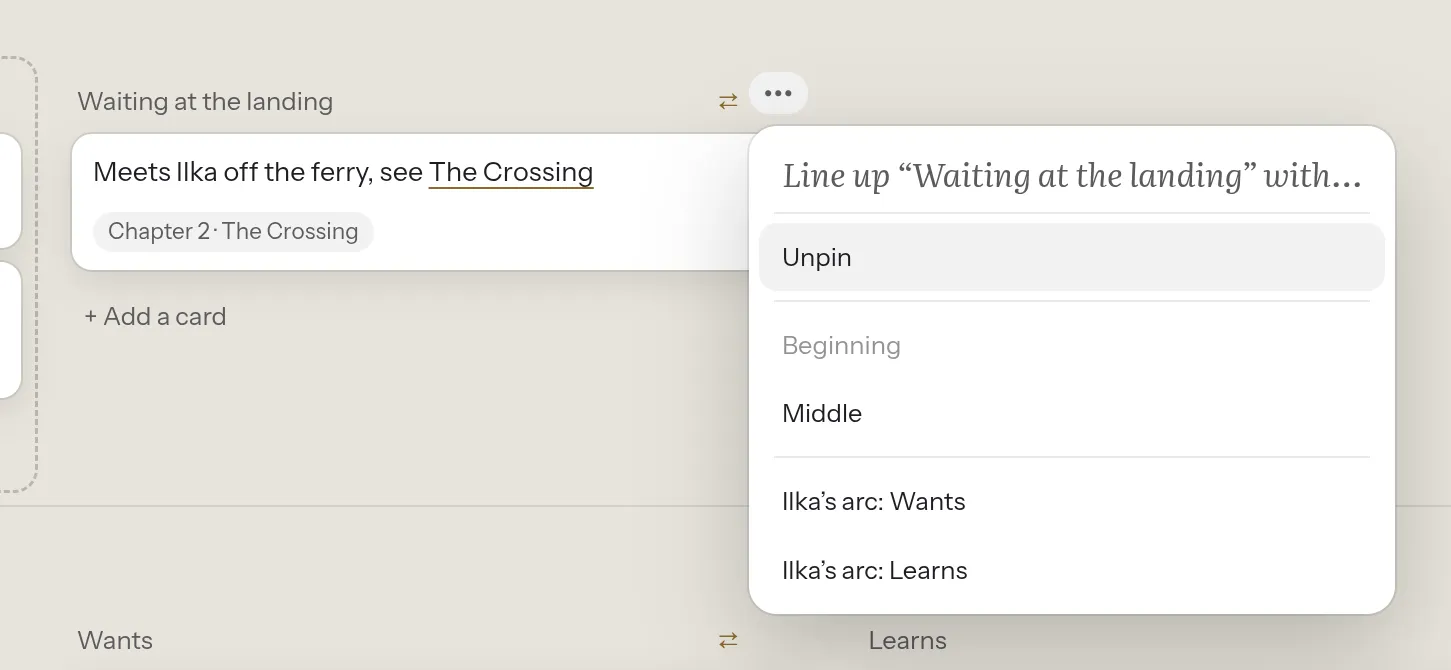
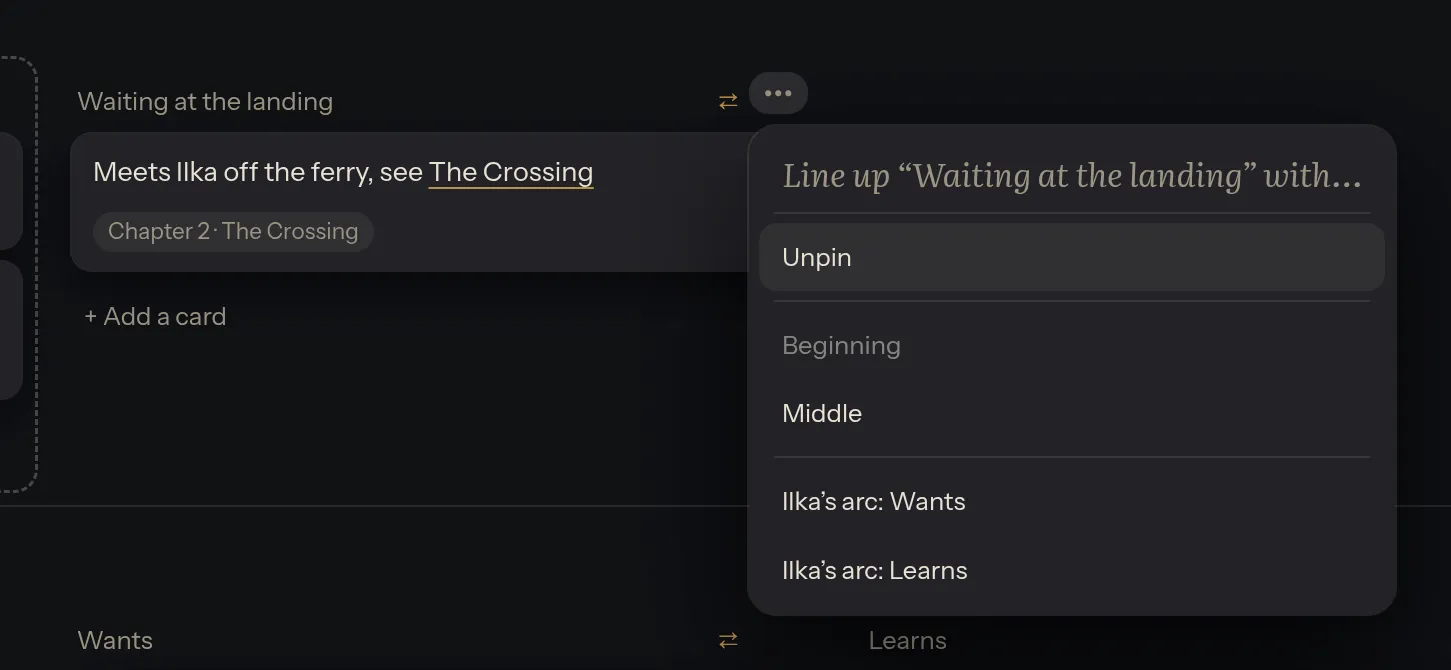
The section keeps its own name and moves into that column. Everything else in its storyline falls into place around it: sections not lined up keep their order, sit between their neighbours and are drawn with a dashed edge, so nothing looks in step when it isn’t.
- Unpin, in the section’s ⋯, undoes a line-up.
- Chains work: a storyline lined up with Bea’s path, which is lined up with the main story, lines up with the main story too.
- If a line-up stops working, for example because the section it pointed to was deleted, the section says so in words, and its ⋯ offers to line it up again or unpin it.
- If no moment fits, the menu says so. A section that comes before everything the others have can’t line up with anything yet.
Move and add cards
Section titled “Move and add cards”- Drag a card to another moment of the same storyline, or use Move to “…” in its ⋯. Cards stay in their own storyline.
- + Add a card, under a section, adds a card there.
- A card that links to a chapter shows that chapter as a small tag, so you can see at a glance where each moment is told in the book.
Hide a row, set an outline aside
Section titled “Hide a row, set an outline aside”- Hide from the timeline, in a row’s ⋯, hides that row from the timeline on this computer. The outline doesn’t change.
- Set aside takes an outline out of the way, off the timeline, without deleting anything. See Set aside or delete an outline.
What lining up changes
Section titled “What lining up changes”Lining up adds one short line under the section’s heading, in the book’s language: “At the same time as Beginning”. Unpinning removes it, leaving the outline exactly as it was. For how it’s written, see Outline files in the technical docs.