

Your first book
You can start writing within a minute. Planning is there when you want it, never before.
Want to look around first? Try a sample book, on the welcome screen, opens a short invented novel to explore. It’s a copy, so change anything you like; Start the sample over…, in its book menu, puts it back as it was.
Start a book
Section titled “Start a book”- On the welcome screen, choose New project. With a book already open, it’s in the menu at the top corner, and Cancel, or Esc, takes you back to the book.
- Choose the Language of the book. It sets the direction your paragraphs run, Hebrew right to left and English left to right, and the language the template is written in: the cards below show the kinds of pages and outlines you’ll get, in that language. You can still mix languages inside the book.
- Choose what you’re making:
- Novel: characters, places and notes, a three-act outline called “Main story”, and one for loose ideas.
- Short story: characters and notes, one chapter ready to write, and a short outline.
- D&D campaign: NPCs, locations, factions, items and lore, sessions instead of chapters, a session plan and a campaign arc.
- Blank: characters, places and notes, and nothing else.
- Give the book a Title. The Name on the cover (optional) is optional.
- Where to keep it starts beside your last book. Choose… picks another place.
- Choose Create.
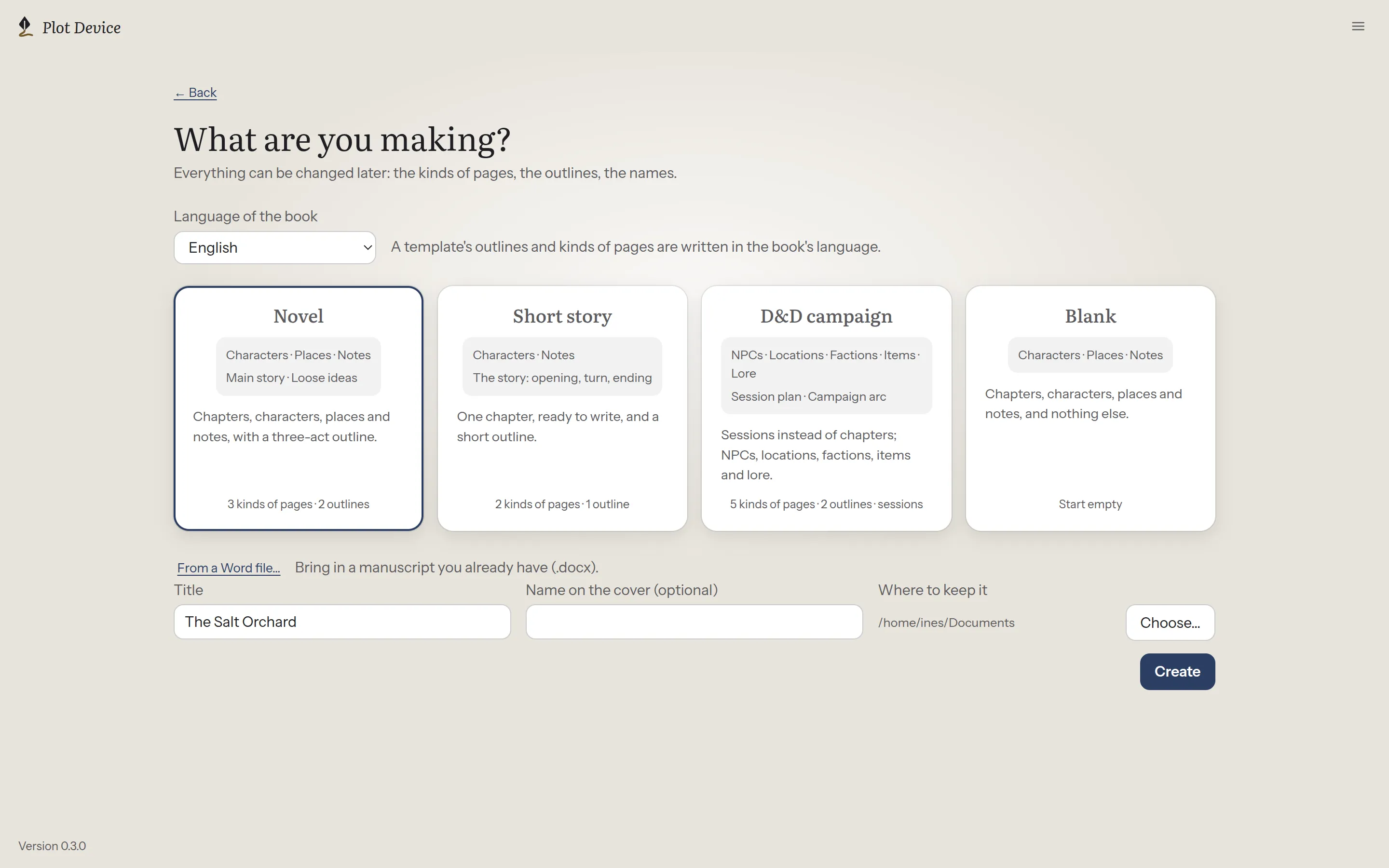
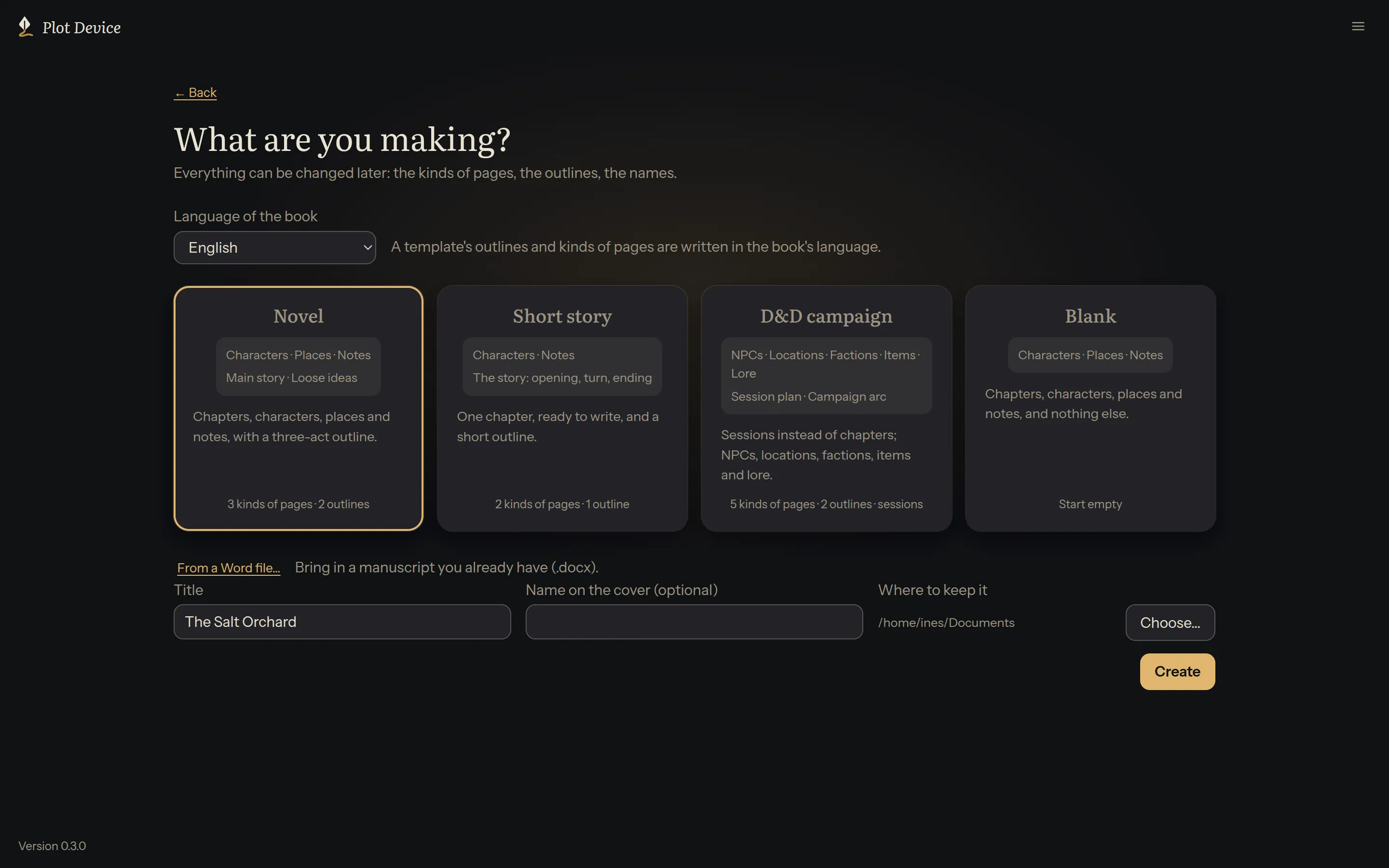
A template is only a start. Everything in it can be changed afterwards: the kinds of pages, the outlines, the names. Nothing in the book remembers which template it came from.
A short story opens in Write on its chapter. A novel or a campaign opens in Story on its outline; switch to Write when you’re ready. Choose + New chapter at the side, give the chapter a title, and start typing.
There is no save button. Plot Device saves a moment after you stop typing, and whenever you switch chapters or leave the window. The top bar says Saved when everything is on disk.
- A tour of the window shows where everything is.
- Chapters and parts explains how a book is arranged.