
A tour of the window
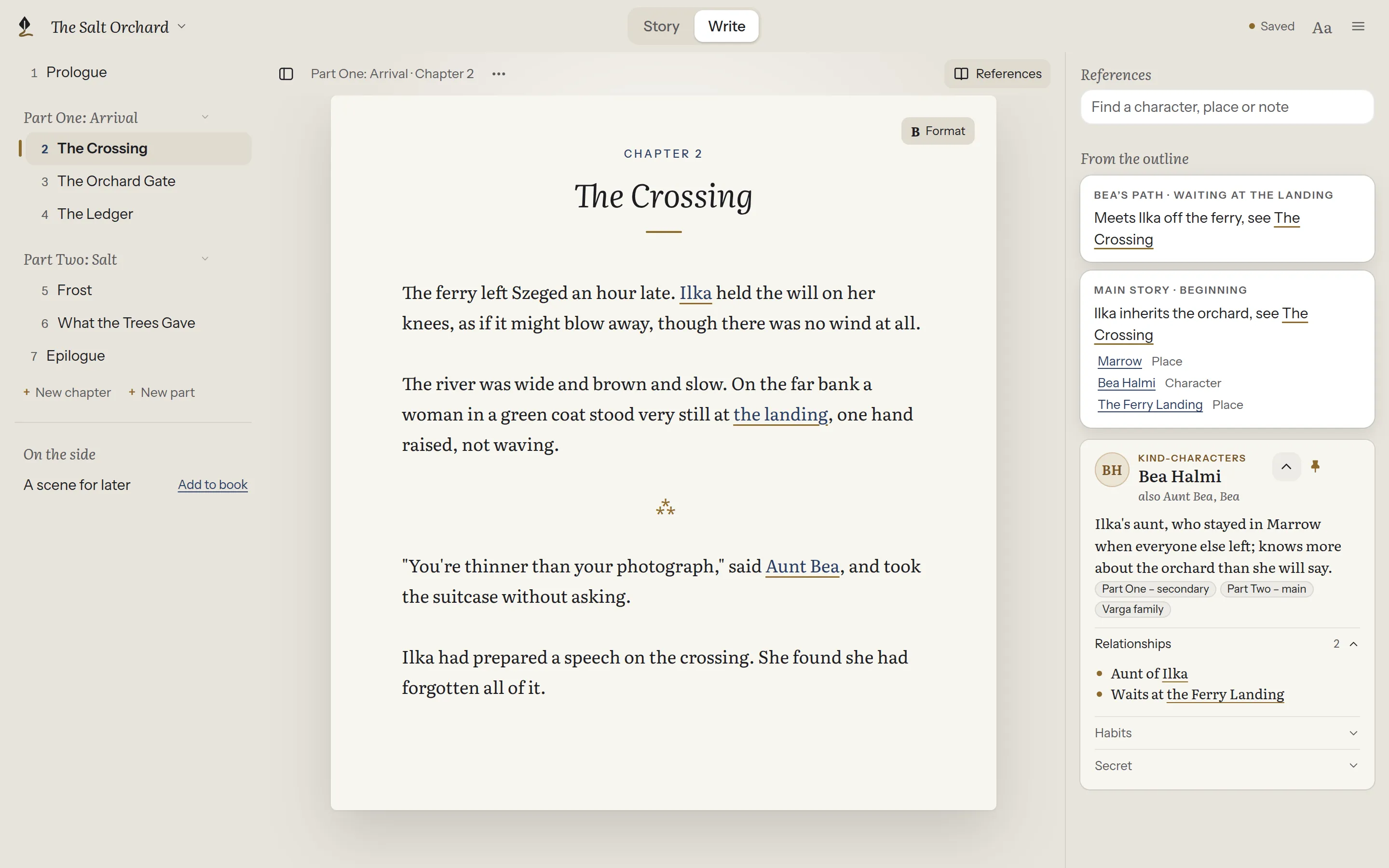
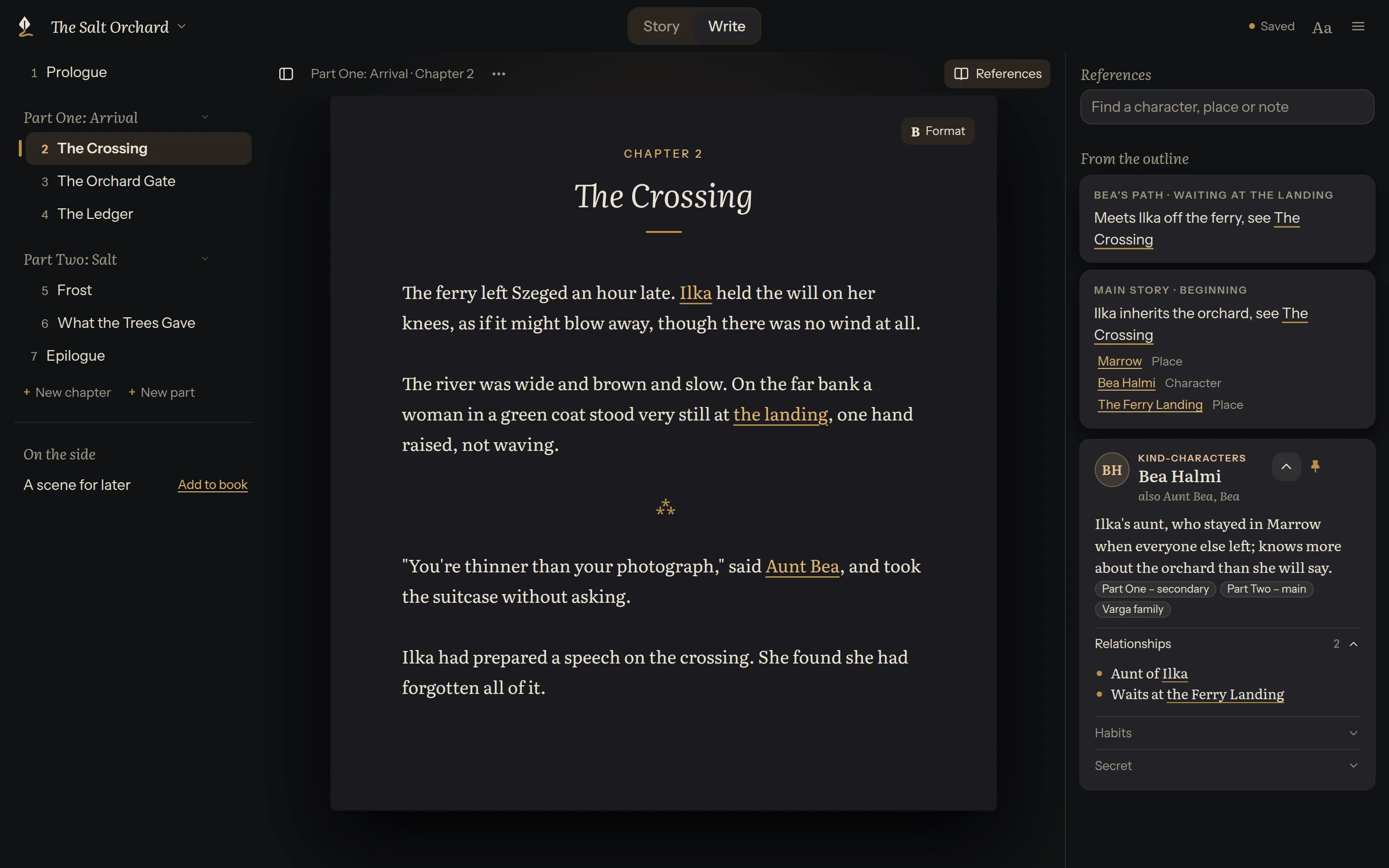
The top bar
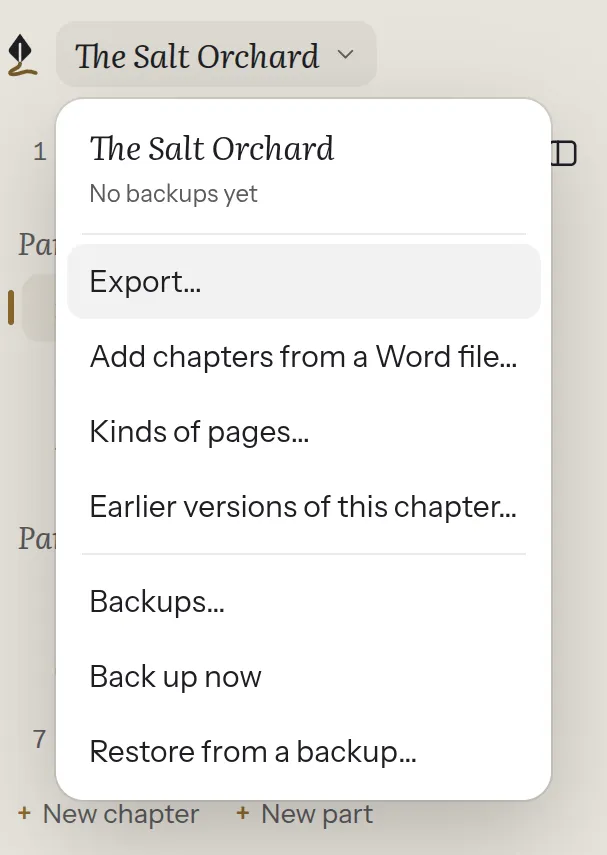
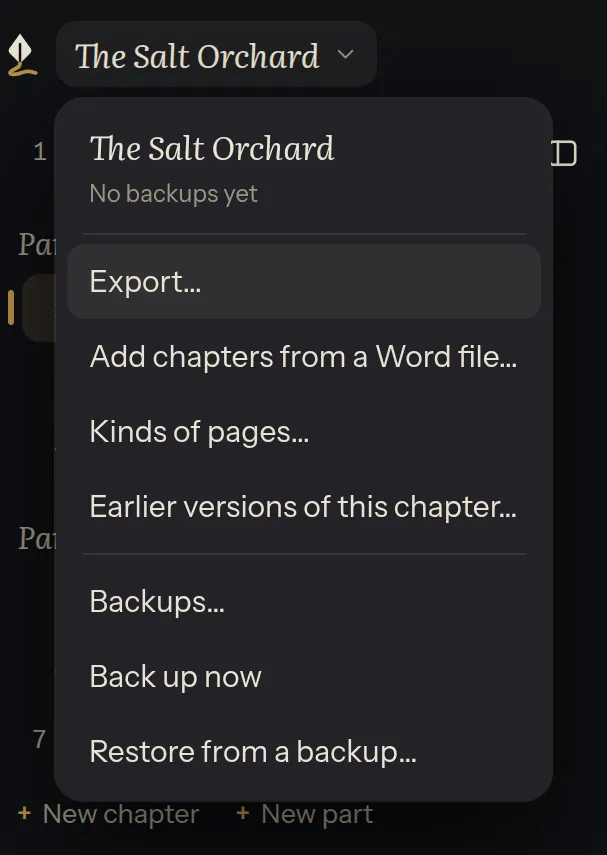
Section titled “The top bar”- The book’s title opens the book menu: Export…, Kinds of pages…, Earlier versions of this chapter…, and the backups: Backups…, Back up now and Restore from a backup…. Under the title, it says when the book was last backed up.
- Story | Write switches between planning and writing. Use them in any order; your place in each is kept.
- Saved tells you everything is on disk.
- Aa changes how the page looks: text size, page width and focus mode.
- ☰ has the rest: open another book, Settings…, Help and documentation, and About.
A small ? beside some places in the app opens the page of this guide about it.
- The chapter list shows the book in reading order, with its parts; a part’s name folds its chapters. The icon at the start of the row above the page hides and shows it, in Story too (Ctrl+\).
- The page is where you write. Select text to format it.
- References, at the end of the row above the page, keeps characters, places and notes beside the page.
- Format, at the page’s top corner, has every formatting command, for when nothing is selected or you prefer the keyboard.
Story is where you plan. Its side list has two halves:
- Plot is the story’s events: your outlines, with the main one marked Main. Timeline, above them, shows them all side by side. The book's chapters, below them, shows the book as it reads. See Outlines, The timeline and The book’s chapters.
- World is who and where: Characters, Places and Notes, and any kinds of pages your book adds. See Characters, places and notes.
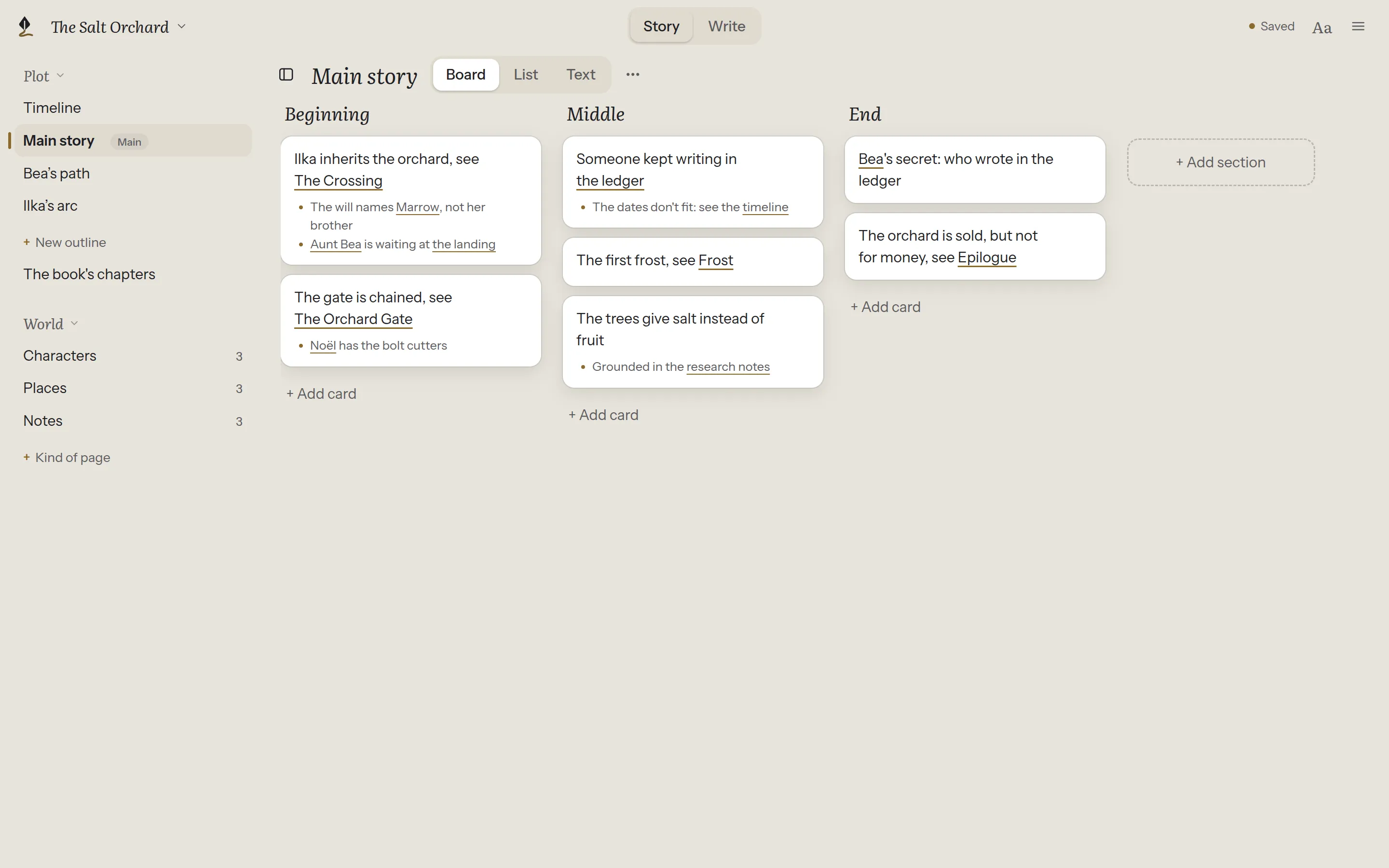
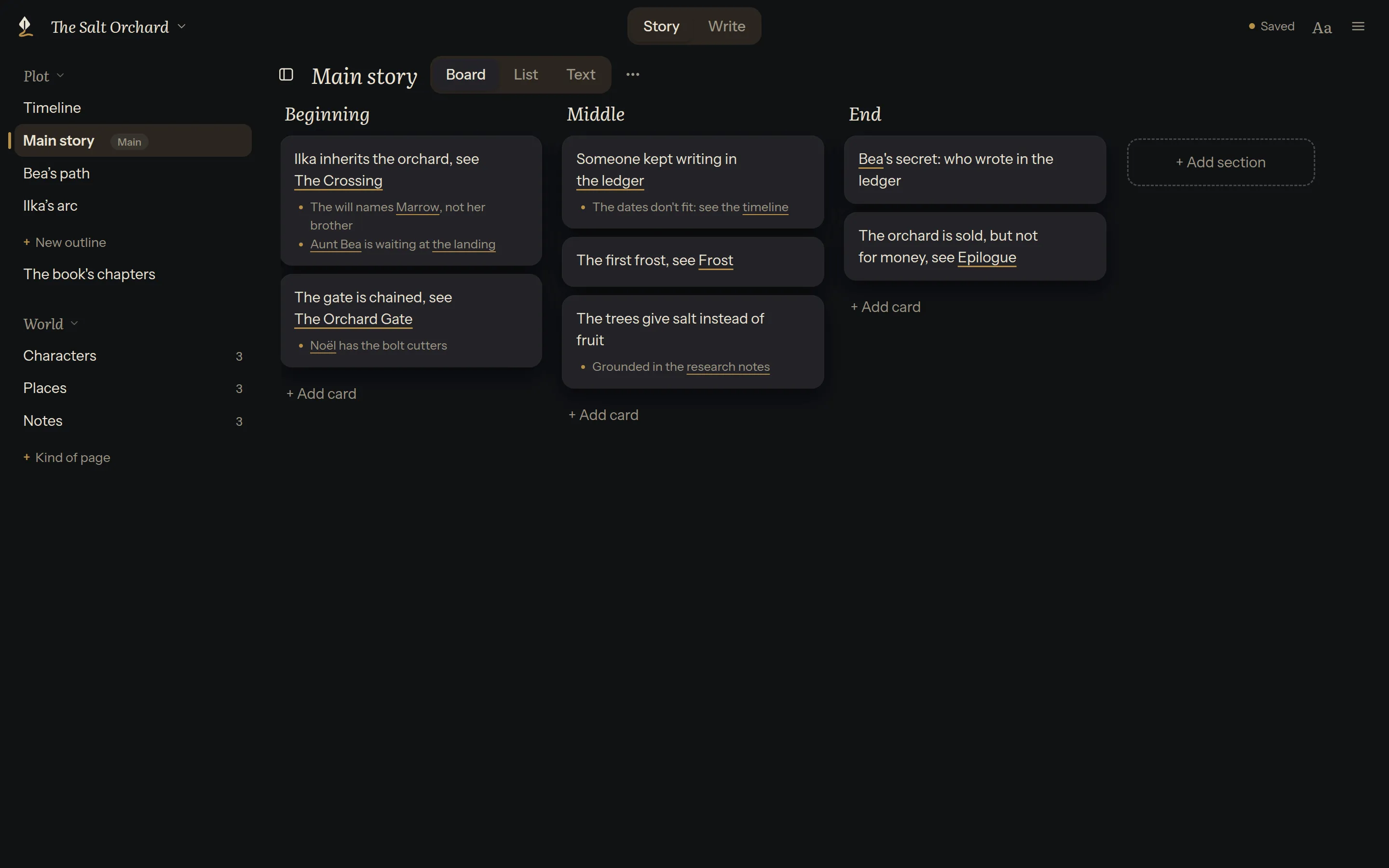
An outline opens on a Board, as a List, or as Text, from the switch beside its name.