
Bringing in a Word file
If your manuscript is in Word, Plot Device can bring it in for you, chapter by chapter. You see first how it splits into chapters, and change it if you need to. Your Word file itself is never changed.
Google Docs and LibreOffice can save a Word file too: in Google Docs, File → Download → Microsoft Word (.docx).
A new book from a Word file
Section titled “A new book from a Word file”- Choose New project, then From a Word file… under the templates, and choose your file.
- Check the chapters (see below), then Next.
- The book’s title, author and language are already filled in from the Word file. Change them if you like, choose where to keep the book, and make it.
The new book is like a blank book: your chapters, in their parts, ready to write in. Plot Device makes a new folder for it, as for any new book, so nothing of yours is ever overwritten.
Chapters added to a book
Section titled “Chapters added to a book”Choose the book’s title at the top, then Add chapters from a Word file…. After you check the chapters, they’re added at the end of the book, in a new part you can name, unless the Word file has parts of its own. Move them wherever you like afterwards: see Moving chapters.
Adding chapters never changes the book’s title or author. If the Word file names a different one, Plot Device tells you, and offers to use it.
Checking the chapters
Section titled “Checking the chapters”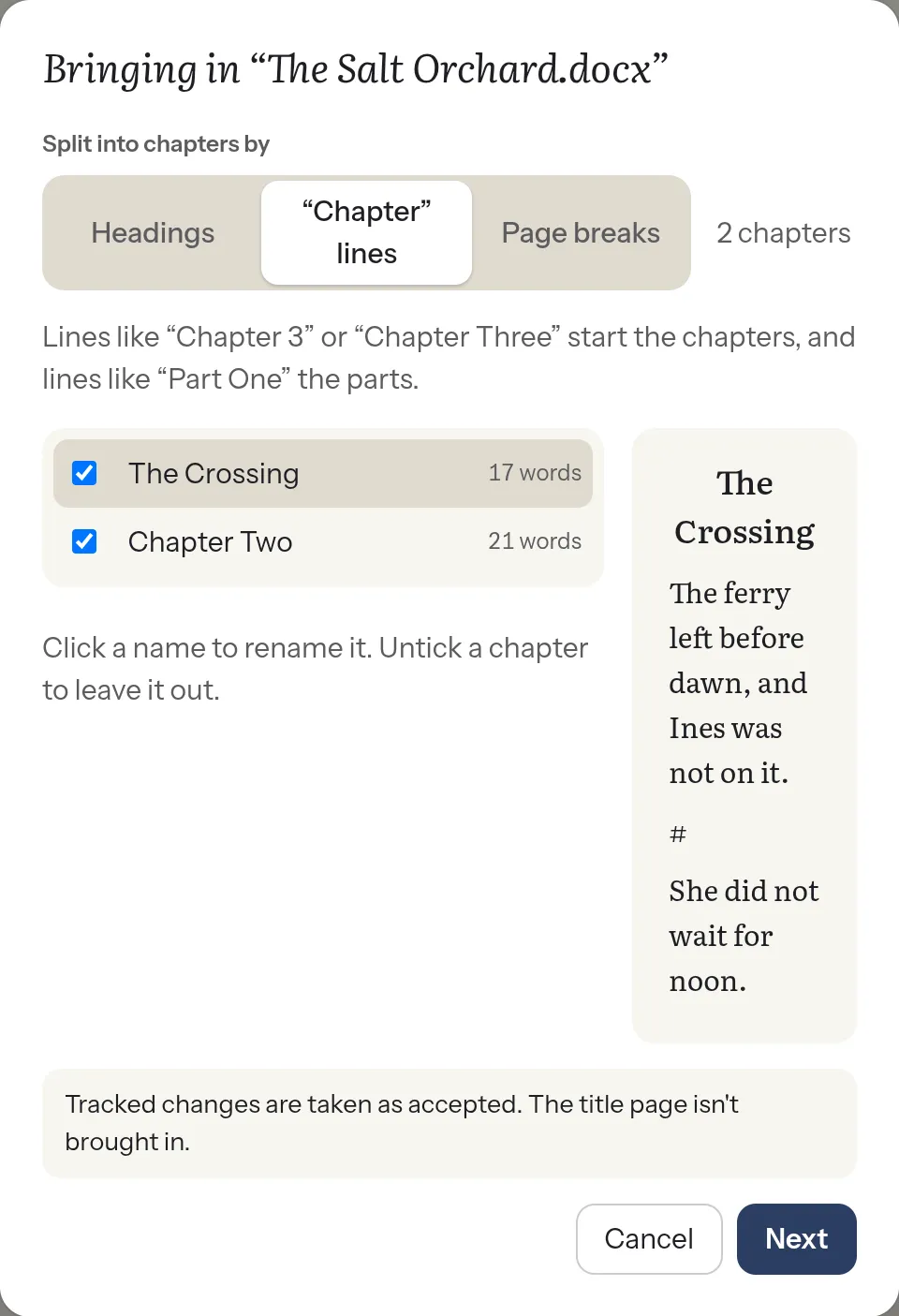
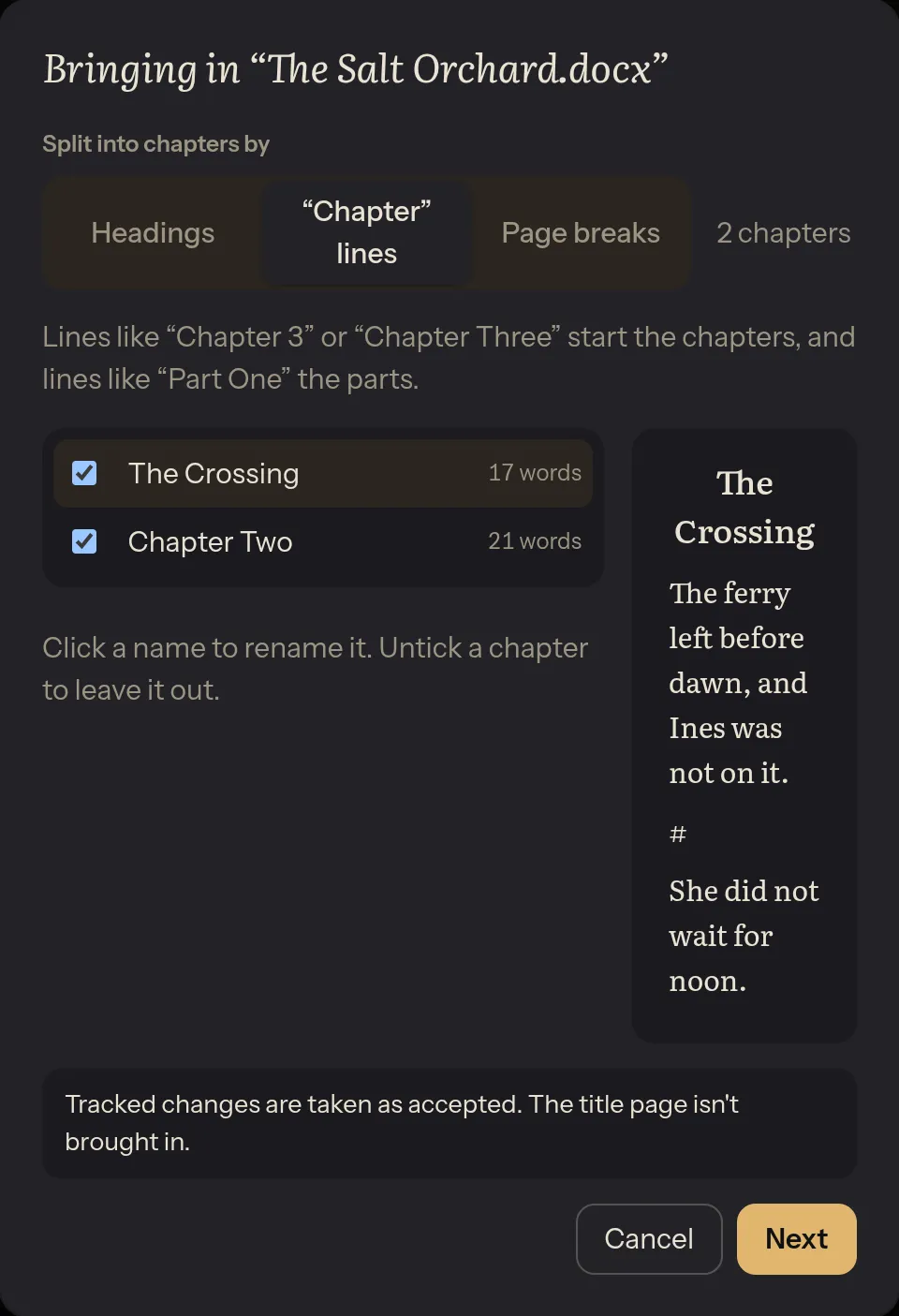
Plot Device guesses how your file splits into chapters. Choose another way if its guess isn’t right:
- Headings: if you used Word’s heading styles for your chapters. Bigger headings above them become parts.
- “Chapter” lines: if each chapter starts with a line like “Chapter 3”, “Chapter Three”, “פרק 3” or “פרק שלישי”.
- Page breaks: if each chapter starts on a new page.
Then, chapter by chapter:
- Click a chapter’s name to rename it. “Chapter 3: The Crossing” comes in as “The Crossing”, since Plot Device numbers chapters itself.
- Untick a chapter to leave it out.
- Join with the chapter above makes a chapter part of the one before it.
- Point at any paragraph and choose + New chapter here to start a chapter there.
What comes in, and what doesn’t
Section titled “What comes in, and what doesn’t”- Comes in: your text, italics and bold, headings inside chapters, quotes, lists, links and scene breaks (
* * *or#). - Footnotes keep their place in the text, marked
[^1], with the notes listed at the end of the chapter. - Tracked changes are taken as accepted: the text comes in as it reads with them.
- Doesn’t come in: comments, pictures and tables. The preview says how many before anything is made.
- The title page before the first chapter isn’t brought in. It fills in the book’s title and author.
- A chapter after a part’s last chapter (an epilogue, say) comes in inside that part, since a Word file doesn’t mark where a part ends. Move it out with one drag.