
Formatting
Formatting looks like formatting: a heading is a heading, bold is bold, and a link shows as its words. The marks that make them, such as ## and **, are never on the page, even where you’re typing.
Select text
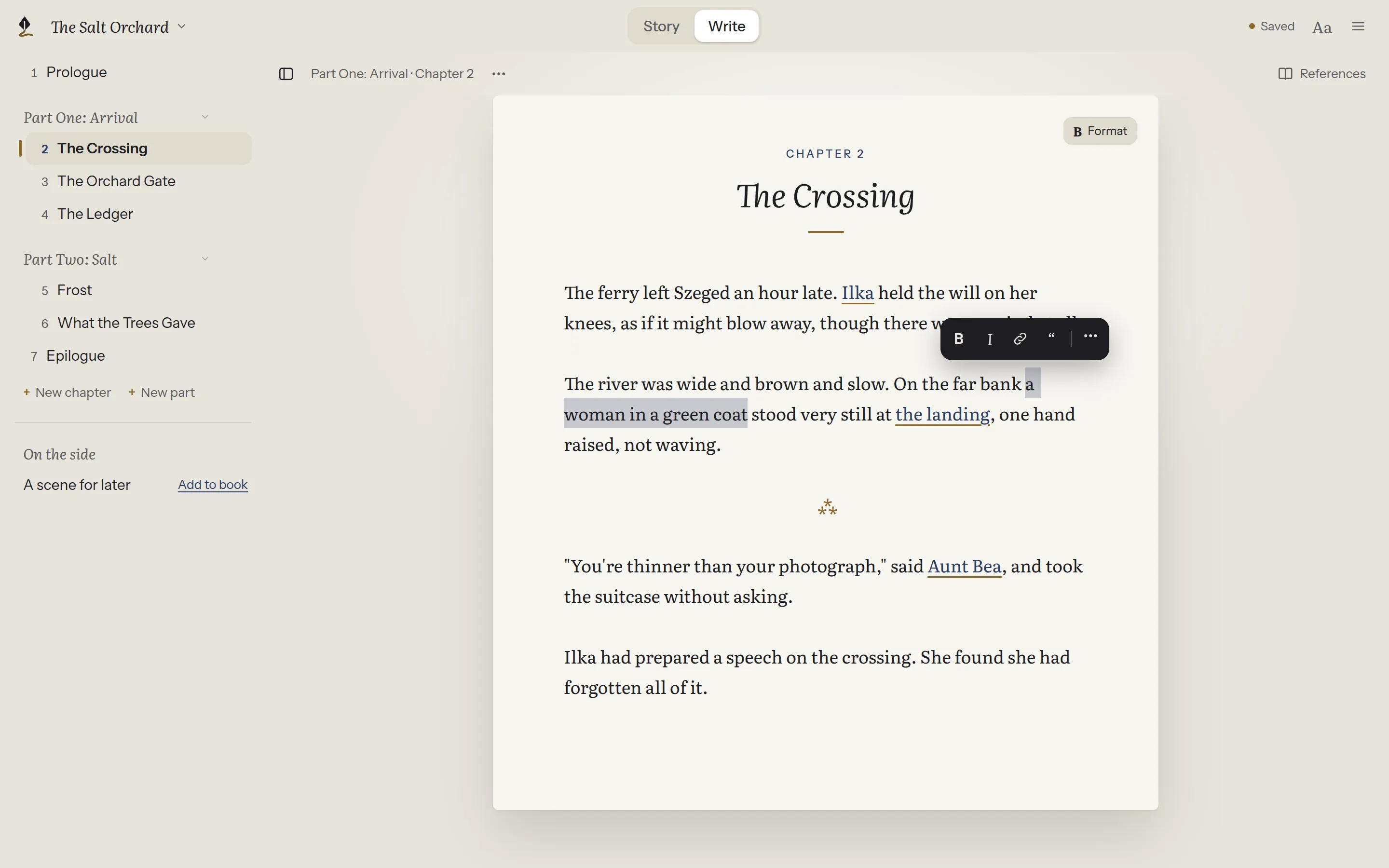
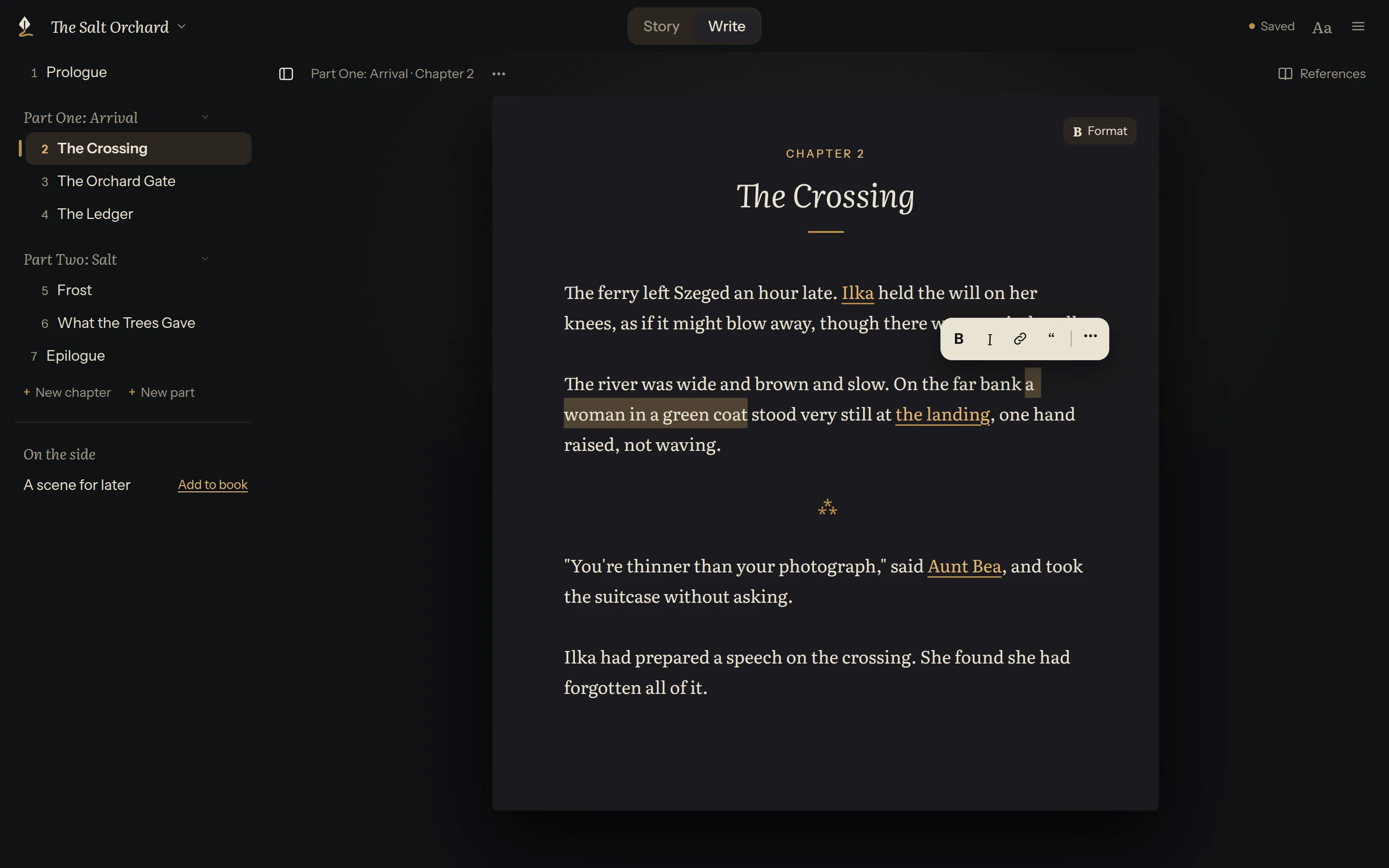
Section titled “Select text”Select some text and a small bubble appears above it: Bold, Italic, Link…, Quote, and ⋯ for the rest.
Format
Section titled “Format”Format, at the top corner of the page, has every command, with or without a selection. It’s on every page you write on: chapters, characters, places and notes, and an outline in Text.
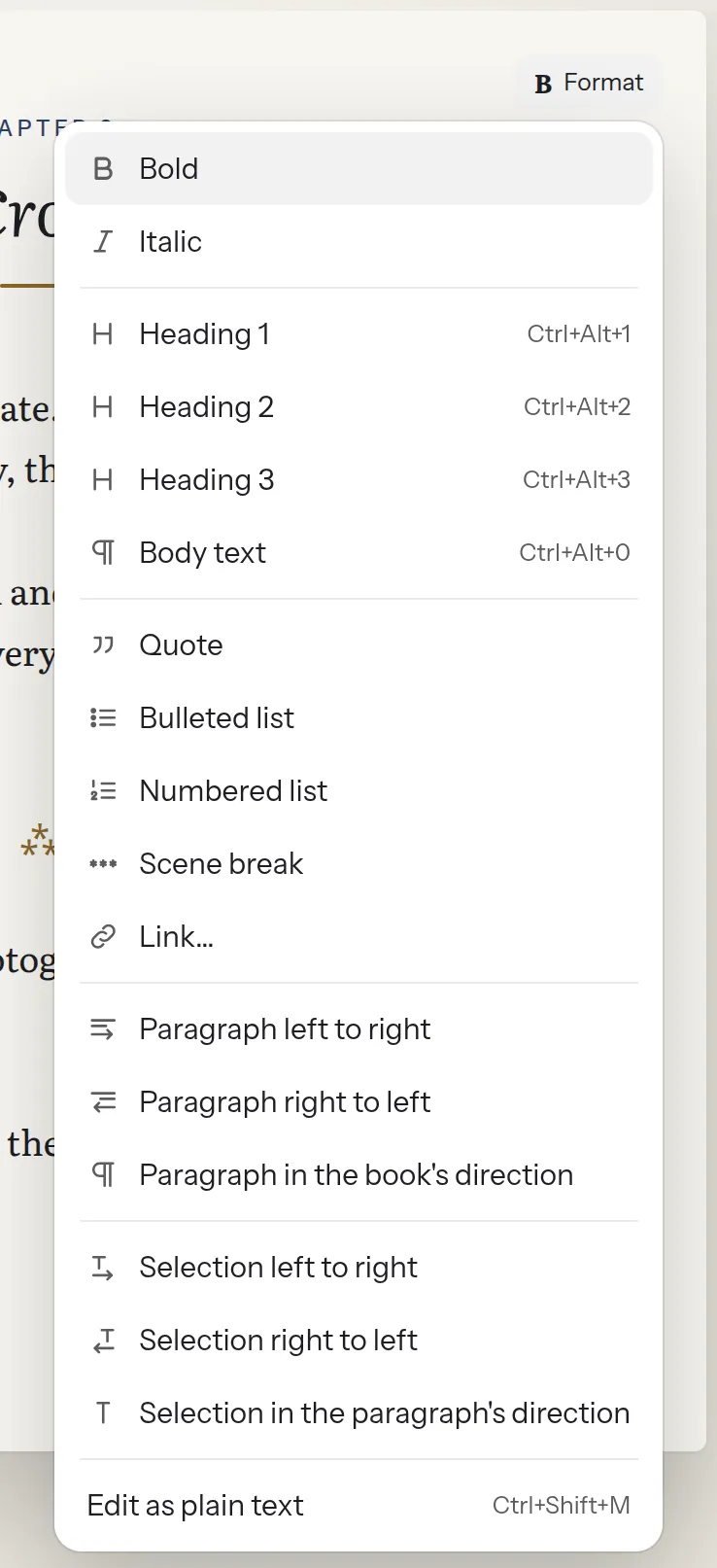
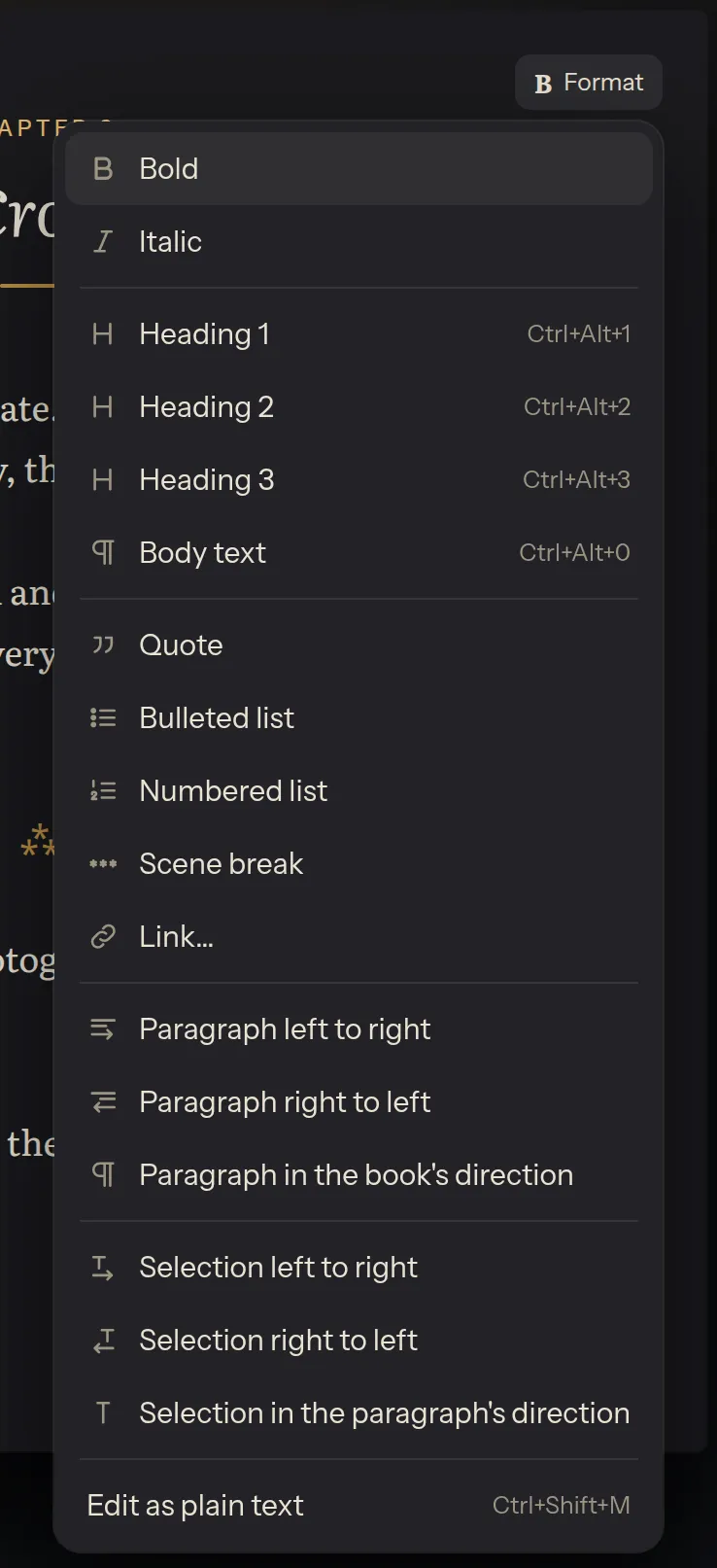
- Heading 1, Heading 2 and Heading 3 make the paragraph you’re in a heading of that size; Body text makes it ordinary text again.
- Quote, Bulleted list and Numbered list apply to the paragraph you’re in.
- Scene break inserts a break between scenes. It shows as ⁂.
- Link… asks for an address. To link a card to a chapter or a character, see Linking.
- The direction commands are explained in Hebrew and English in one book.
Keyboard
Section titled “Keyboard”| Press | To |
|---|---|
| Ctrl+B (⌘B on a Mac) | Bold |
| Ctrl+I (⌘I) | Italic |
| Ctrl+Alt+1, 2, 3 (⌘⌥1, 2, 3) | Heading 1, 2 or 3, as in Word and Google Docs |
| Ctrl+Alt+0 (⌘⌥0) | Body text |
| Backspace, at the start of a heading or a bullet | Make it ordinary text (a bullet one step in moves out a step) |
| Enter | Start a new paragraph |
| Shift+Enter | Break the line without a new paragraph |
| Tab, from the page | Reach the bubble’s buttons; Escape returns to the page |
As you type: ## at the start of a line makes a heading, - a bullet and **word** bold. The marks disappear as soon as they’re understood.
A link shows as its words, in the link colour. Edit them like any words: Backspace erases a letter at a time, and the link goes only when its last letter does. Typing right after a link is ordinary text, outside it.
With the cursor in a link, a small bubble says where it goes and offers Open, Change link… (choose another page, chapter or address; the words stay) and Remove link (the words stay, as ordinary text).


Plain text
Section titled “Plain text”Underneath, formatting is kept as a few simple marks in the text, such as **bold** and *italic*, so the same text reads well in any other app. To see and fix the marks by hand, choose Edit as plain text in Format, or in an outline’s ⋯ on the board. Every mark shows, and what you type is saved exactly as typed.
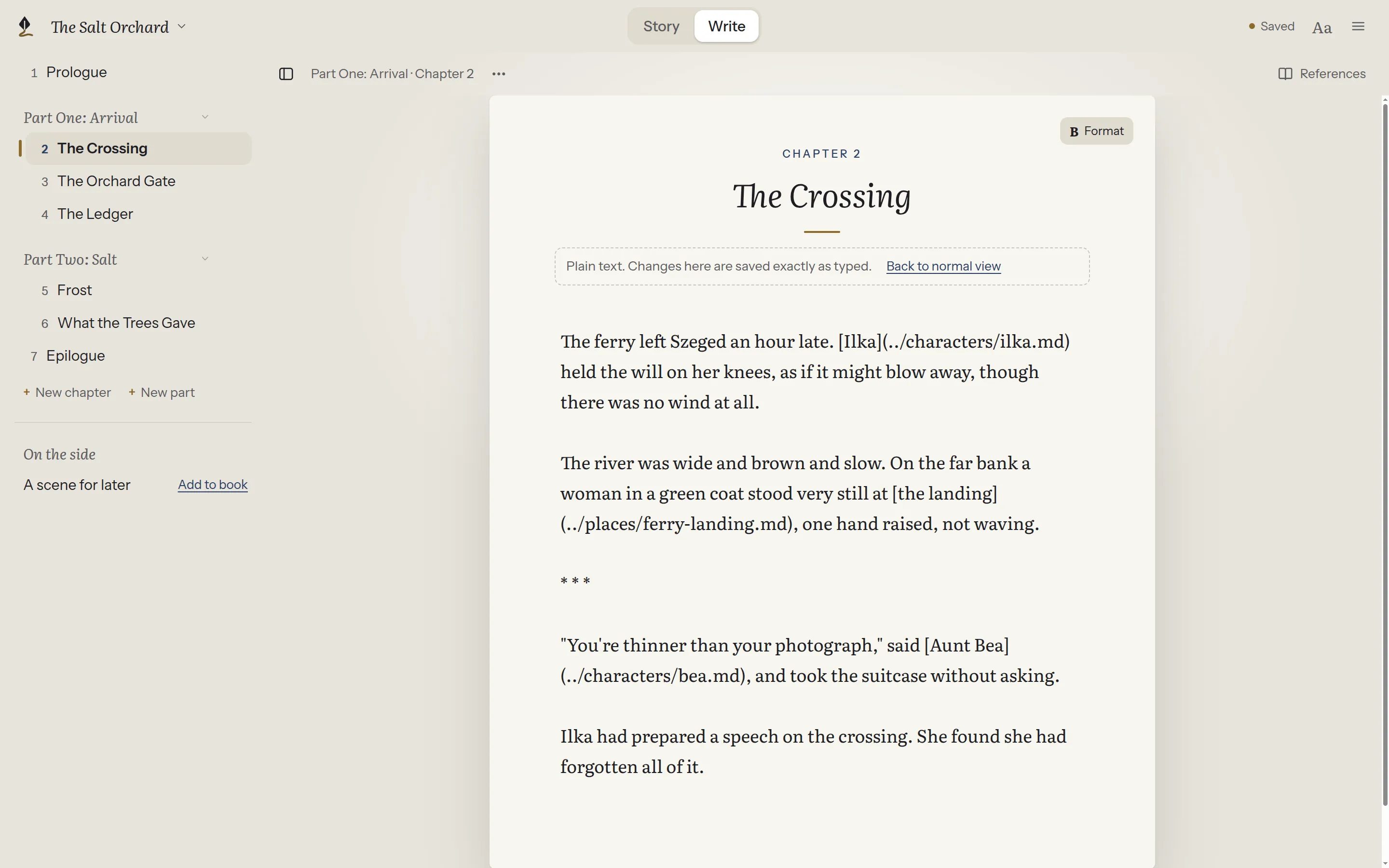
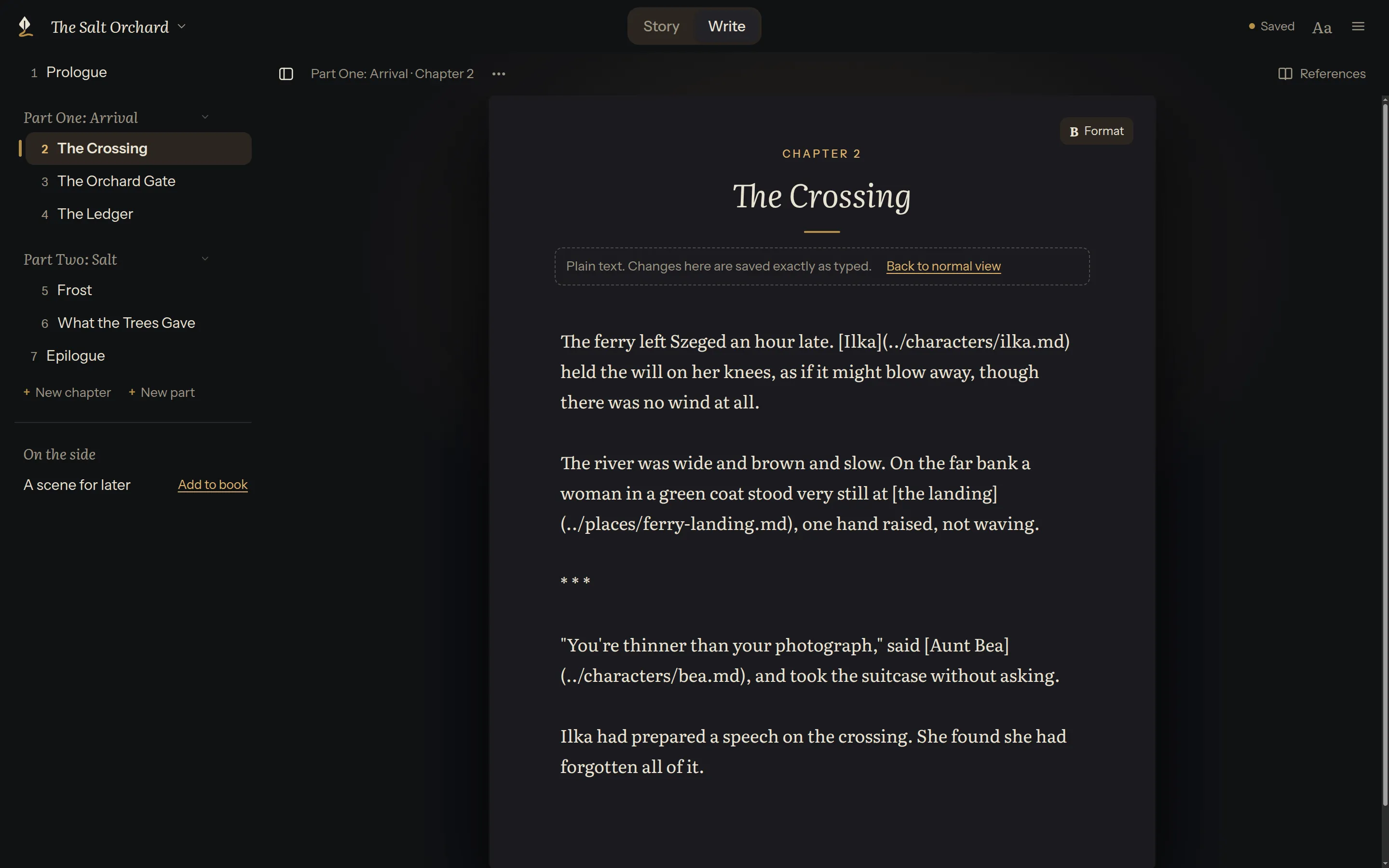
Back to normal view returns, with undo and your place kept.
Ctrl+Shift+M (⌘⇧M) switches the page you’re typing in to plain text and back. To keep a Plain text button beside Format, turn on Show the plain-text switch beside Format in Settings.
To always open pages this way, see Settings.